![qooper-certificate-image-1.png]](https://www.qooper.io/hs-fs/hubfs/qooper-certificate-image-1.png?height=50&name=qooper-certificate-image-1.png)
Learn how to send new connection requests to mentors or mentees, and how to accept or decline requests in Qooper.
Sending a New Connection Request
-
Sign in to your account
-
Go to mentoring.qooper.io and log in with your credentials.
(Insert screenshot here)
-
-
Go to the Mentoring tab
-
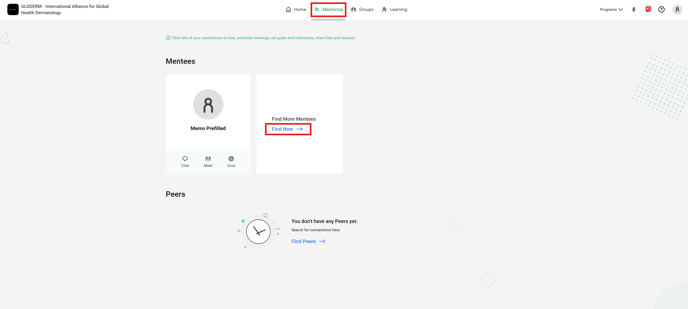
From the top menu, click on Mentoring.
- click on "Find Now"
-
-
Find a mentor or mentee
-
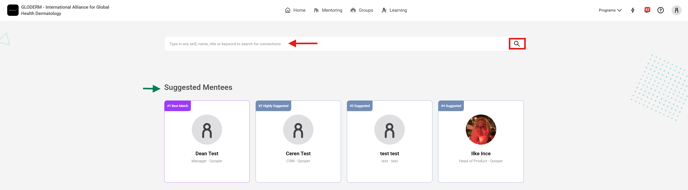
Use the search bar to look for someone specific, or choose from the Suggested list.
-
-
Send a connection request
-
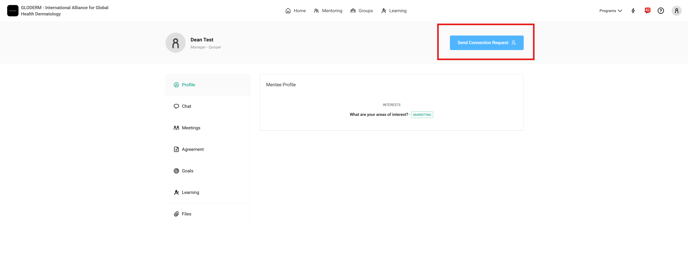
Click on their profile.
-
At the top-right, click Send Connection Request.
-
Responding to a Connection Request
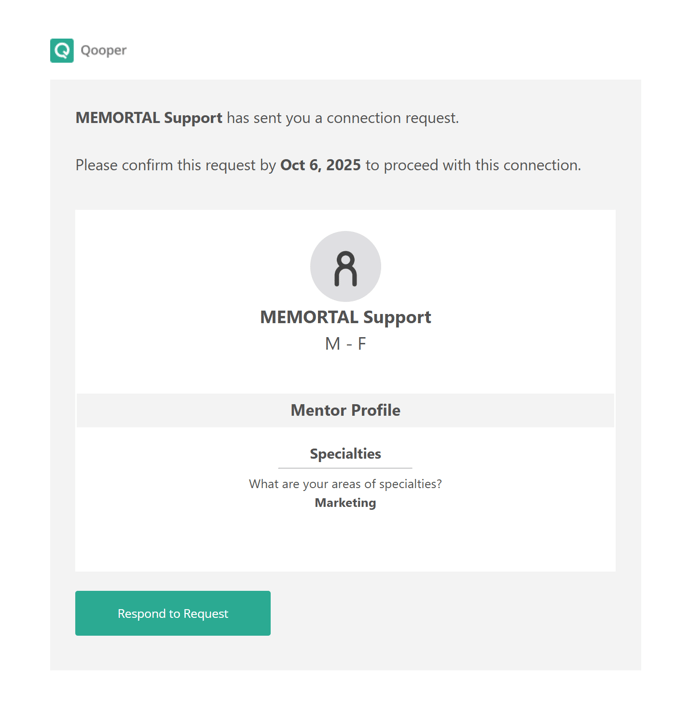
When someone sends you a request, you’ll receive an email notification.
-
Open the email
-
Look for the connection request email and click Respond to Request.
-
-
View the Connection Request page
-
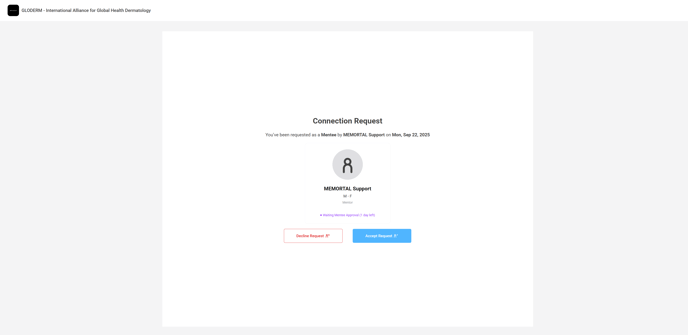
You’ll be directed to a page where you can either accept or decline the request.
-
-
Declining a request
-
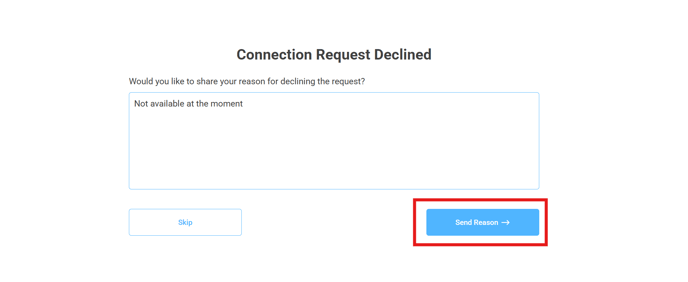
Option 1: Type a short reason, then click Send Reason.
-
Option 2: Decline without leaving a comment by clicking Skip.
-
-
Accepting a request
-
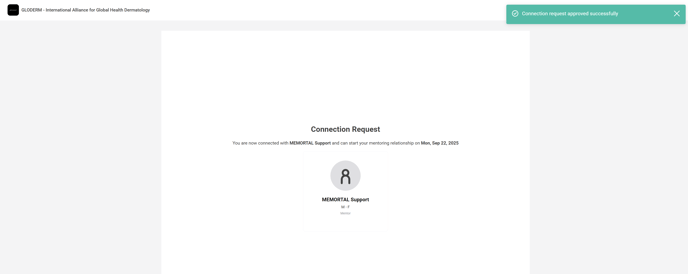
Click Accept Request to confirm the connection.
-
Troubleshooting
-
Didn’t get the email? Check your spam/junk folder or log in directly at mentoring.qooper.io to see pending requests.
-
Button not showing up? Refresh your browser and ensure you’re on the correct profile page.