![qooper-certificate-image-1.png]](https://www.qooper.io/hs-fs/hubfs/qooper-certificate-image-1.png?height=50&name=qooper-certificate-image-1.png)
To manage how many mentees you can connect with on the platform, follow these simple steps:
Access Your Profile Menu
-
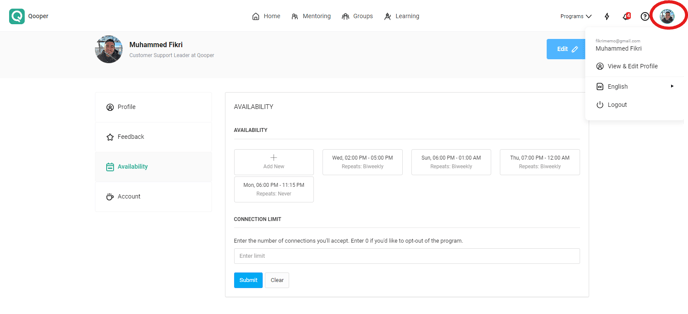
Locate your profile image at the top right edge of the screen.
-
Click on your profile image to open the drop-down menu.
Edit Your Profile
-
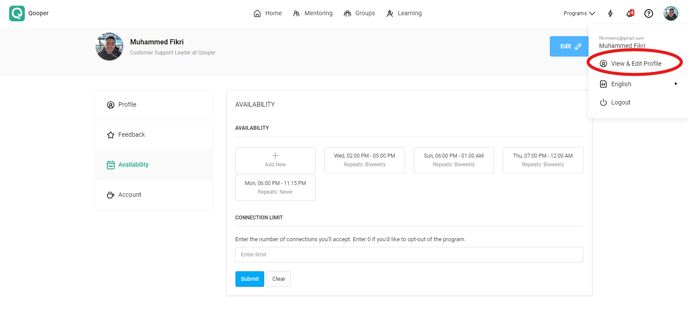
From the drop-down menu, select "View & Edit Profile."
Navigate to Availability Settings
-
On your profile page, find and click the "Availability" tab located on the left-hand side.

Set Your Connection Limit
-
In the "Connection Limit" section, enter the maximum number of mentees you want to accept.
-
Click "Submit" to save your changes.
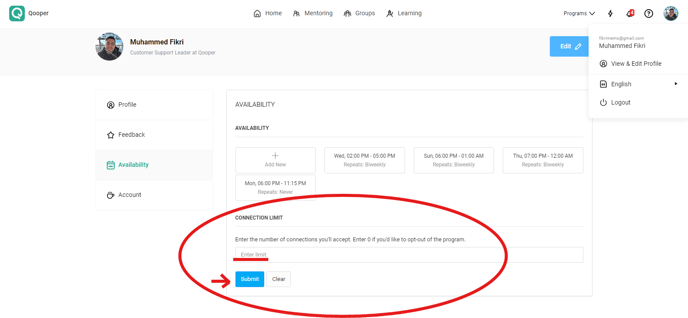
Note: The number you enter will be the total number of mentee connections you’ll accept on the platform.
Opting Out
-
To opt out of the program, enter 0 in the connection limit field and click "Submit."
⚠️ Important Note About Admin Overrides
Mentor connection limits can be overridden by program administrators. If an admin updates your connection limit to a new number (e.g., 2, 4, 5), the new limit will immediately take effect—regardless of what you had previously set.