![qooper-certificate-image-1.png]](https://www.qooper.io/hs-fs/hubfs/qooper-certificate-image-1.png?height=50&name=qooper-certificate-image-1.png)
Adding users to groups via the admin dashboard on Qooper is a straightforward process.
Follow these simple steps:
Step 1: Access Your Admin Dashboard
- Sign in to your admin account at platform.qooper.io.
Step 2: Navigate to the Groups Section
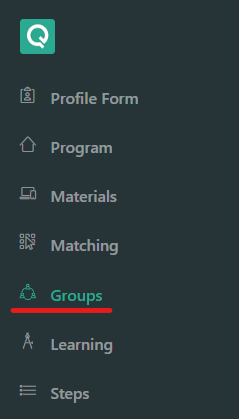
- Locate and click on the "Groups" section in the dashboard menu.
Step 3: Select the Desired Group
- Identify the specific group to which you wish to add users.
Step 4: Access Group Options
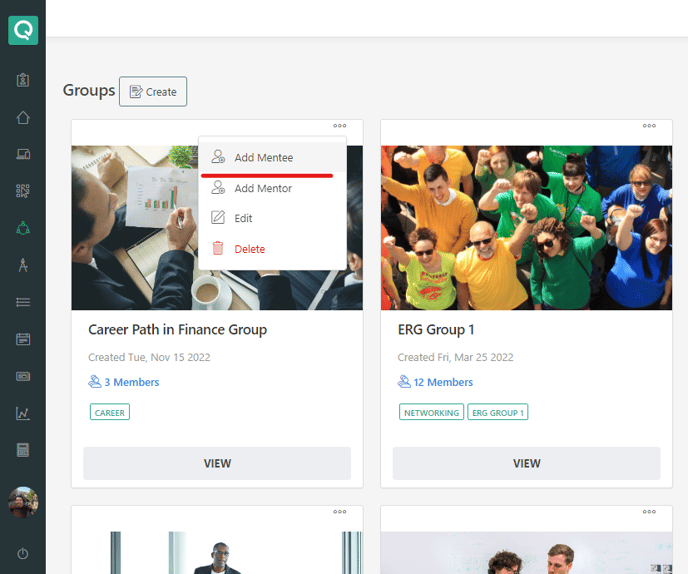
- Look for the three-dot icon (…) positioned at the top right corner of the group's interface and click on it.
Step 5: Choose User Role
- Depending on the user's role, select either "Add Mentee" or "Add Mentor".
Step 6: Search for the User
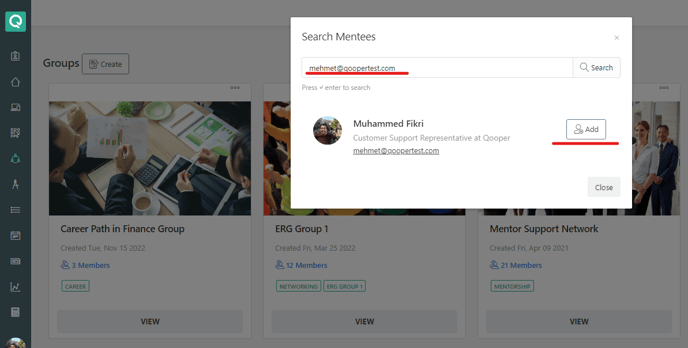
- Utilize the search bar within the designated dialog box. Enter the user's email, name, organization, or relevant details to locate them.
Step 7: Add the User
- Once you find the user you intend to add, click on "Add" to include them in the selected group.