
The Wording Change feature allows admins to customize important platform terminology to better match the language and structure of their program.
This setting can be found in the Program section of the Admin Dashboard and can be turned On or Off.
When enabled, admins can update key wording across the platform, such as:
- Mentor → Coach
- Mentoring → Networking
- Group → Community
This helps create a more customized and aligned participant experience based on the goals and branding of the program.
Why Wording Change is Important
Different organizations use different terminology depending on their program structure and audience.
The Wording Change feature helps:
- Align the platform language with internal company terminology
- Create a more personalized participant experience
- Support different program types beyond traditional mentoring
- Improve clarity and adoption for participants
How to Update Wording
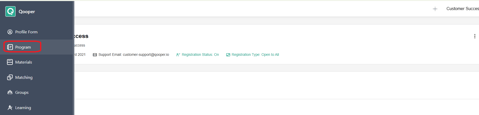
- Go to the Program section in the Admin Dashboard
- Open Wording Change
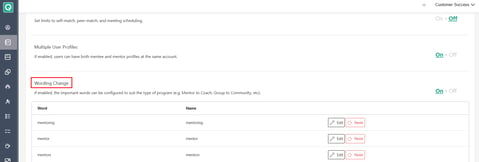
- Turn the setting On
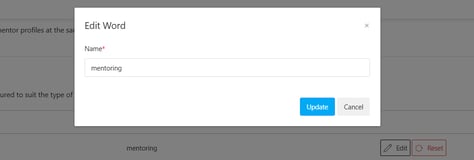
- Update the desired wording labels

- Click Update to save the changes
-
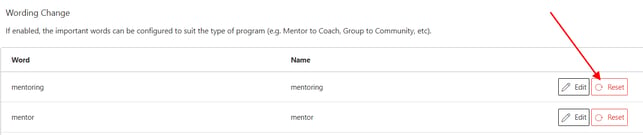
Admins can also reset wording labels back to their default values if needed.
Example Use Case: Survey as Group Discussion
One common use case for Wording Change is the Survey as Group Discussion experience.
Admins can update wording labels to transform the participant experience from a standard discussion flow into a survey-focused experience.
Example:
- Change “Discussion” → “Survey”
Result:
- Participants will see a “Take Survey” experience instead of a standard discussion interaction inside the group.
This helps create a clearer and more intuitive survey workflow for participants.
Related article:
How to Enable Surveys in Group Discussions