
This guide explains how to publish a program survey within a group using the “Survey as Group Discussion” feature. This allows admins to notify participants via a group discussion and enable a survey directly within the group experience.
Note: The “Survey as Group Discussion” feature must be enabled by your CSM team .
Once enabled, admins can configure wording labels in the admin dashboard.
This is a structured setup process. The survey is not manually pushed into a group after creation. Instead:
- A group discussion is created first as an announcement
- The survey is then enabled through a program setting
- The final experience becomes a survey embedded inside the group discussion
Steps to Activate and Share the Survey in a Group
1. Create the Group
- Go to the admin panel
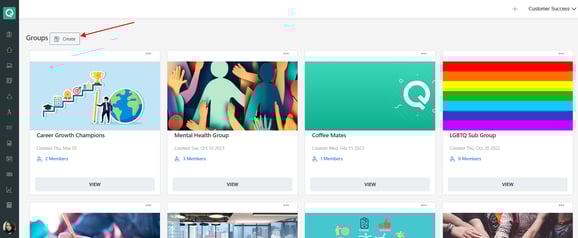
- Create a group for the program or event
- Assign all relevant users (participants) to this group
2. Prepare the Survey
- Go to the Survey section in the admin dashboard
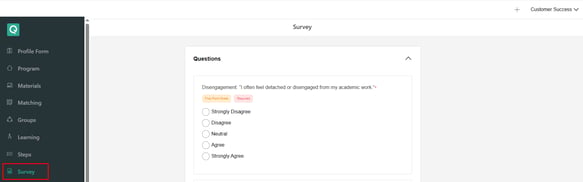
- Finalize all survey questions before activation
3. Assign Users
- Ensure all intended participants are assigned to the correct group
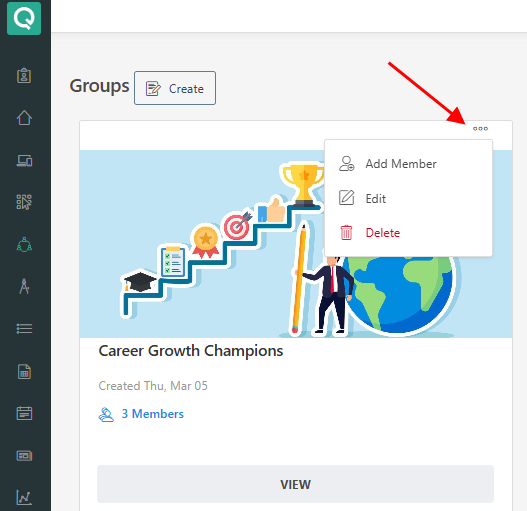
- This ensures the survey is visible to the right audience
4. Create a Group Discussion (Announcement Step)
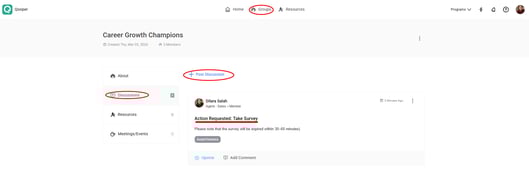
- Go to the group discussion area
- Create a post informing users:
- A survey will be launched
- Provide expected timing (e.g., 30–60 minutes or 1 hour)
- Ask users to be ready to complete it
- Publish the discussion to notify participants in advance
5. Enable Survey as Group Discussion (CSM Configuration + Wording Update)
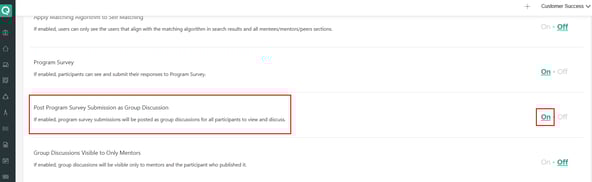
Once the “Survey as Group Discussion” feature is enabled by your CSM team, the following configuration is available:
-
Go to Wording Change settings (Program tab in admin)
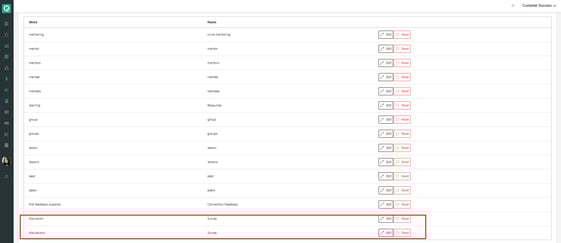
- Update discussion labels:
- Replace “Discussion” → “Survey”
Result after configuration:
- The group discussion interface will no longer show generic discussion actions
- Instead, users will see:
- “Take Survey” button inside the group discussion area
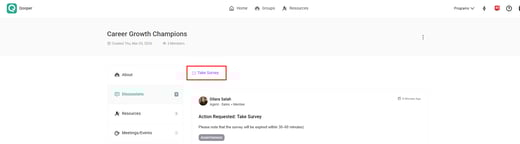
- “Take Survey” button inside the group discussion area
6. User Experience
After activation:
- The discussion remains visible in the group
- A “Take Survey” button appears at the top
- Users can complete the survey directly from the group discussion view
Admin Tips!
- Always create the group first before setting up the survey flow
- Finalize all survey questions before activation
- Double-check user assignments to ensure correct group visibility
- Use a discussion post to prepare participants before activation
- Ensure configuration is fully ready before the survey experience is activated, as it becomes live immediately
- Update wording settings (Program → Wording Change) separately to ensure the correct “Take Survey” UI appears
- Keep configuration stable before activation to avoid inconsistencies