
The ROI & Insights section on the Reporting page helps program administrators identify participants who may need additional support and recognize highly engaged participants.
Admins can review three lists: Retention Risks, High Performers, and Changes This Month. They can also download list data or start an email to a participant directly from the report.
🔍 Reviewing and Acting on Insights
- Open the Reporting page in the admin dashboard.
- Locate the ROI & Insights section.
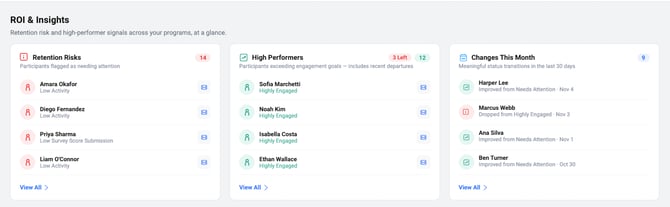
- Review the three lists:
- Retention Risks: Participants flagged for reasons such as Low Activity or Low Survey Score Submission.
- High Performers: Participants with the highest activity during the previous calendar month.
- Changes This Month: Meaningful status transitions during the last 30 days, such as participants improving from a retention-risk status or dropping from high engagement.
Available Actions:
- View All: Opens the complete list.
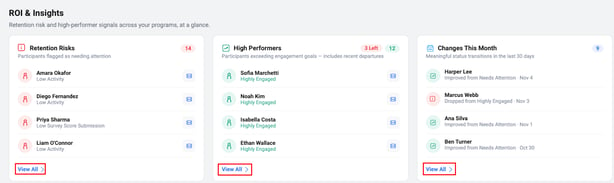
- Download All: Downloads the list data, following the report's existing segment filters .
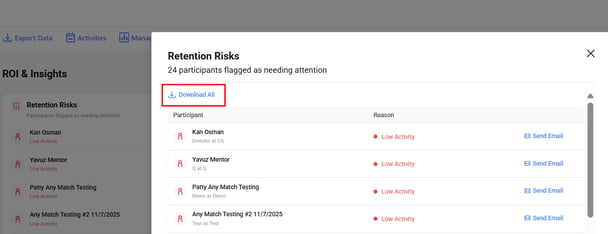
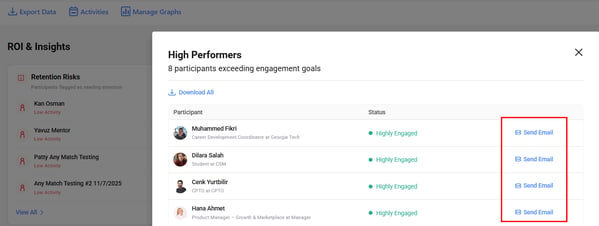
- Send Email: Opens a new email in the admin's email application, with a suggested subject and message that can be edited before sending.
📊 How Retention Risks and High Performers Are Calculated
1. Retention Risks
An active mentor or mentee can be flagged as a Retention Risk for either of the following reasons:
- Low Activity: The participant has had no counted program activity within the configured inactivity duration. New programs use a default duration of 3 months.
- Low Survey Score: The participant's scored rating questions in a survey submission total 35% or less of the maximum possible score.
The reason for the flag appears in the Retention Risks list.
How Retention Risk Flags Are Cleared
- Low Activity Flags: An existing Low Activity flag clears automatically when a participant completes any qualifying program activity (such as a meeting, conversation, goal, learning step, or feedback)—including completing the final requirement needed to earn their program certificate.
- Low Survey Score Flags: A Low Survey Score flag clears when the participant submits a subsequent survey scoring above 35%, or when an older low score ages out during the system's regular inactivity review.
- Program Certificate Impact:
- Participants who have already earned their program certificate are exempt from future Low Activity flags if they become inactive later. (Note: Earning a certificate retroactively does not clear a pre-existing Low Activity flag unless qualifying activity was completed).
- Certificate earners can still be flagged if they submit a survey scoring 35% or lower.
- Account Status: Only active participants appear on the live Retention Risks list. Suspended, deactivated, or removed users are automatically excluded.
2. High Performers
High Performers are the most active participants from the previous calendar month, based on counted program activity.
- The system selects approximately the top 10% of active participants, rounding down.
- At least one participant is included if anyone had activity during that month.
- If participants have the same activity level, the person who joined the program earlier ranks first.
- Participants with no activity during the month are excluded.
- Participants who have since left, been deactivated, or become ineligible may remain visible with their updated status.
Example: If 25 participants were active, 10% is 2.5. The system rounds down and recognizes the top 2 participants.
Counted Program Activities
Activities considered include:
- Being matched or starting a new connection
- Starting a conversation or sending messages
- Completing a meeting
- Completing a goal
- Completing a learning module or program step
- Attending an event
- Starting a discussion
- Submitting feedback
⚙️ Configuring the Retention Risk Duration
Admins can customize how long a participant can remain inactive before being flagged.
- Navigate to Program Settings.
- Locate Participant Inactivity.

- Click Edit Duration next to Mark as Retention Risk After.
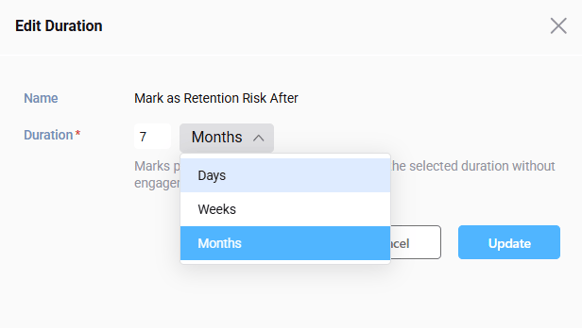
- Enter a duration in days, weeks, or months.
- Click Update.
- Review the Confirm Duration Change prompt and confirm the change.
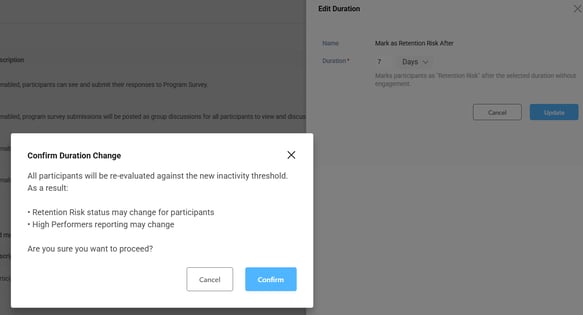
📌 Important: Confirming a new duration triggers a re-evaluation of participants. This may update the Retention Risks and Changes This Month lists.
🔎 How Reporting Page Filters Affect ROI & Insights
At the top of the Reporting page, there are two filtering tools: Segment Filters and Date Range. Here is how each filter interacts with the three ROI & Insights lists:
1. Segment Filters (Profile Form Questions):
- The Segment Filters button lets you filter your reporting data based on participants' profile form questions (such as time zones, competencies, or department).
2. Date Range Filter:
-
Retention Risks: Controlled strictly by the Mark as Retention Risk After duration in Program Settings (default 3 months) and survey scores (35% or lower). Changing the top Date Range picker does not affect this list.
- High Performers: Controlled strictly by activity during the previous completed calendar month (top 10% of active participants). Changing the top Date Range picker does not affect this list.
- Changes This Month: Defaults to showing status transitions from the last 30 days. However, if you apply a custom Date Range at the top of the Reporting page (such as 6 months or a full year), this list updates to display all status transitions recorded within that selected date range.