
Qooper's Program Configuration settings allow program admins to customize the participant experience, manage mentoring and matching workflows, control access to features, and configure reporting and integrations.
This guide explains each configuration section and its settings, including what each option does and how it affects your program.
1. Program Details
This section contains the basic information and registration settings for your program.
- Program Name: The name displayed for the program.
- Description: A brief introduction explaining the purpose of the program.
- Support Email: The email address participants can contact for assistance.
- Registration Status: Indicates whether registration is active.
- Registration Type: Determines who can register, such as all eligible participants when set to Open to All.
Tags and Topics:
Tags help categorize and track activities across Learning Resources, Goal Setting, Meetings and Groups, and Discussion Areas. Use tags that align with your program's objectives to support relevant tracking and measurement.
Badges:
Badges recognize participant achievements and encourage engagement. They can be configured with requirements that participants must meet to earn them.
Examples include:
- Mentoring Badge: Recognizes mentoring-related achievements.
- Achiever Badge: Recognizes the completion of defined requirements.
- Learner Badge: Recognizes learning-related achievements.
- Certificate: Provides a Certificate of Completion.
The available requirements determine how participants qualify for each badge or certificate.
Wording Changes:
Allows admins to customize terminology to match their program's language. For example, you can replace "Mentor" with "Coach" or "Group" with "Community."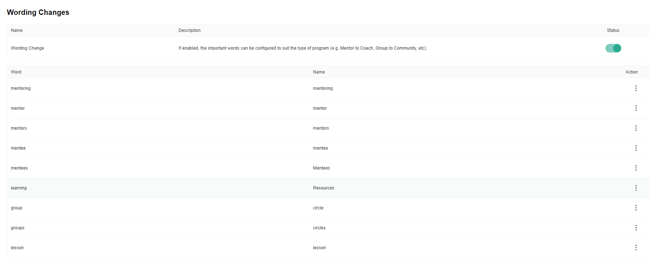
AI: Mentorship Trainer AI
When enabled, a Mentorship Trainer AI chat bubble appears in the bottom-right corner for participants. It can help answer questions about mentoring best practices, such as setting goals or starting a conversation with a mentor.
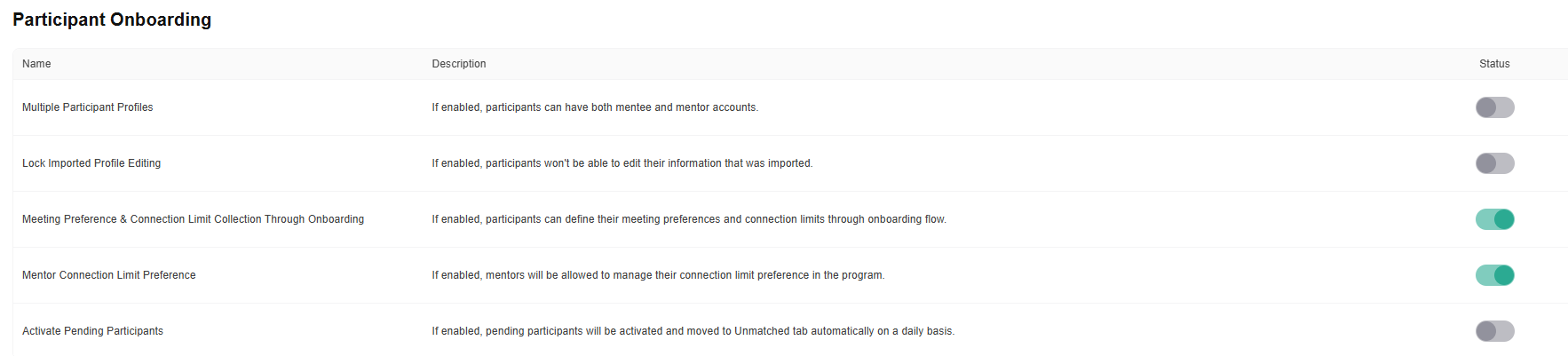
2. Participant Onboarding
These settings control how participants complete onboarding and manage their profile information and connection preferences.
- Multiple Participant Profiles: Allows participants to have both mentor and mentee accounts.
- Lock Imported Profile Editing: Prevents participants from editing profile information that was imported into Qooper.
- Meeting Preference & Connection Limit Collection Through Onboarding: Allows participants to specify meeting preferences and connection limits during onboarding.
- Mentor Connection Limit Preference: Allows mentors to manage their preferred connection limit within the program.
- Activate Pending Participants: Automatically activates pending participants and moves them to the Unmatched tab on a daily basis.
3. Matching Algorithm Rules
These settings determine how participant profile responses are evaluated when calculating match compatibility.
Matching Rules and Weights:
Matching rules compare responses to profile form questions, such as skills, competencies, and time zones.
Each rule has a weight from 1 to 10:
- 1: Lowest relative importance.
- 10: Highest importance, requiring a match on that criterion for the connection to qualify.
Examples of matching rules include:
- Competences Matching Rule: Compares participants' responses related to competencies.
- Time Zone Matching Rule: Compares participants' time zone responses.
- Skills/Competencies Matching Rule: Compares participants' skills and competencies.
Conditional Matching Rules:
Conditional matching rules evaluate specified conditions in participants' profile form responses rather than simply comparing answers.
Examples include:
- Time Zone Conditional Matching Rule: Applies defined conditions to participants' time zone responses.
- Conditional Matching Rule: Applies configured conditions to relevant profile form answers.
The criteria and weights should reflect your program's matching objectives. For example, if time zone compatibility is essential for regular meetings, consider giving it greater importance.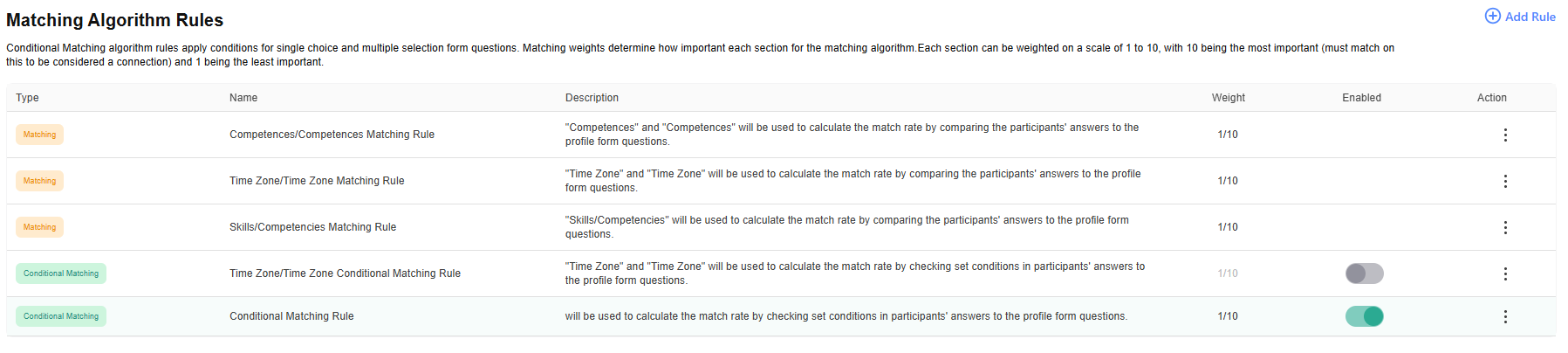
4. Matching
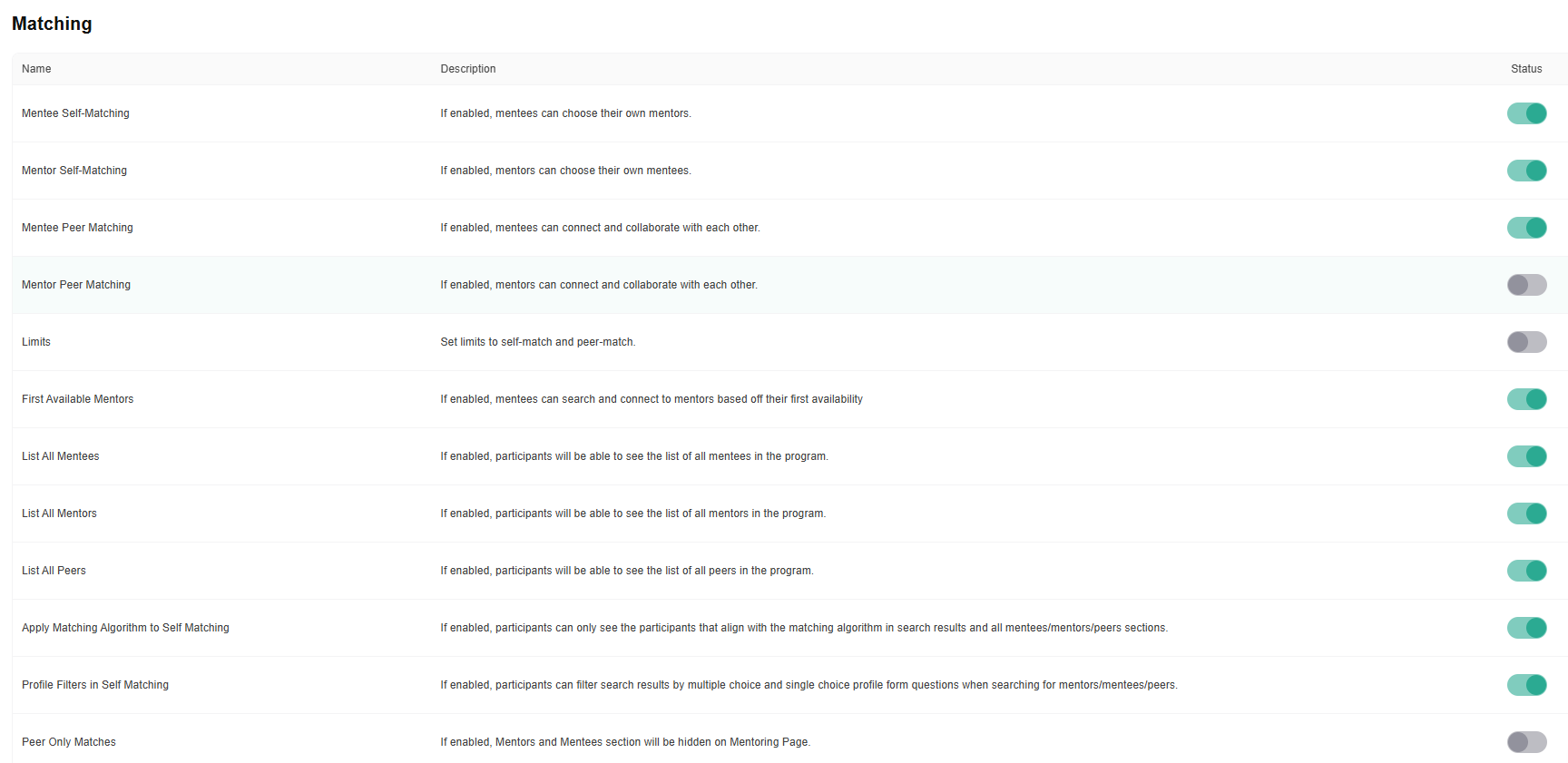
These settings control how participants discover and connect with mentors, mentees, or peers.
- Mentee Self-Matching: Allows mentees to choose their own mentors.
- Mentor Self-Matching: Allows mentors to choose their own mentees.
- Mentee Peer Matching: Allows mentees to connect and collaborate with one another.
- Mentor Peer Matching: Allows mentors to connect and collaborate with one another.
- Limits: Sets limits for self-matching and peer matching.
- First Available Mentors: Allows mentees to search for and connect with mentors based on their availability.
- List All Mentees: Allows participants to view the list of mentees in the program.
- List All Mentors: Allows participants to view the list of mentors in the program.
- List All Peers: Allows participants to view the list of peers in the program.
- Apply Matching Algorithm to Self-Matching: Restricts search results and participant lists to people who meet the matching algorithm's criteria.
- Profile Filters in Self-Matching: Allows participants to filter search results using single-choice and multiple-choice profile form questions.
- Peer Only Matches: Hides the Mentors and Mentees sections on the Mentoring page.
Admin tip: Choose matching settings based on how much control participants should have. For example, enabling self-matching supports participant choice, while applying the matching algorithm helps keep suggestions aligned with your matching criteria.
5. Match Approval
These settings determine who must approve a match request before the connection is finalized.
- Mentor Match Approval: Requires the mentor to approve the request.
- Mentee Match Approval: Requires the mentee to approve the request.
- Admin Match Approval: Requires an admin to approve the request.
Admins can configure the approval process according to the program's governance and matching workflow.

6. Match Conclusion
- Self-Unmatching: Allows participants to conclude their existing connections themselves.
This setting gives participants control over ending connections without requiring an admin to initiate the action.

7. Mentoring
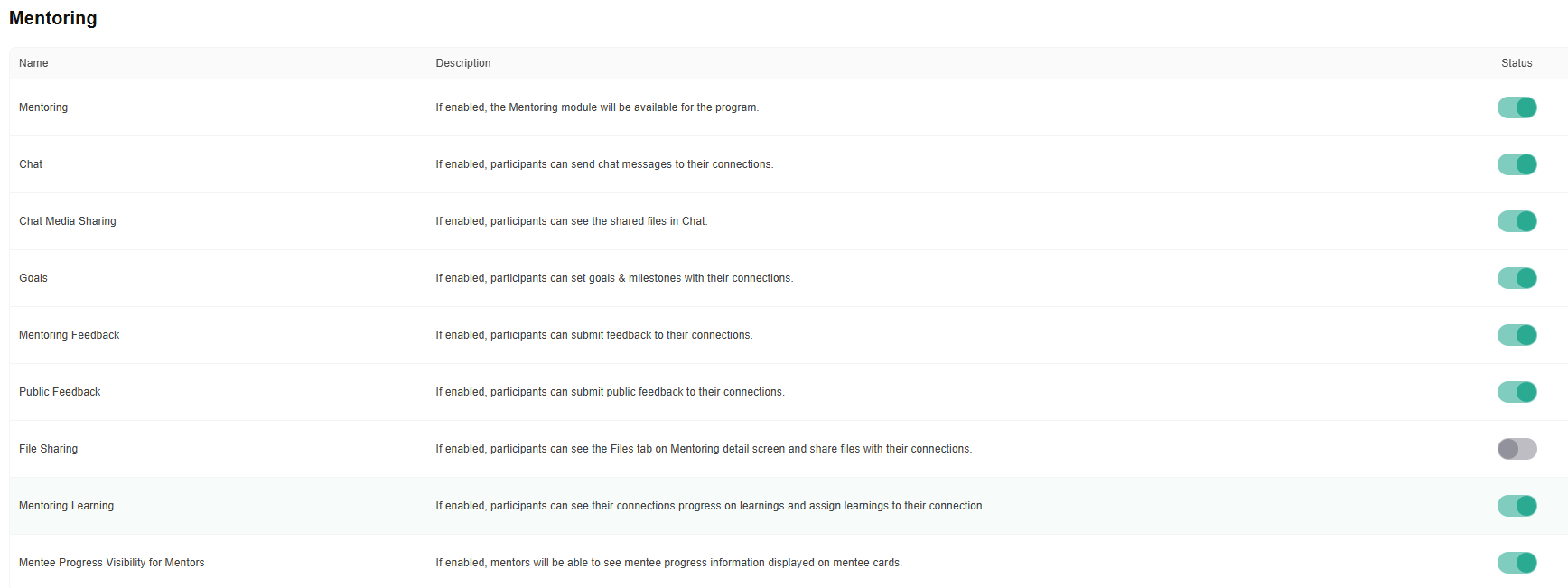
These settings control the Mentoring module and the tools available to participants within their connections.
- Mentoring: Enables the Mentoring module for the program.
- Chat: Allows participants to exchange chat messages with their connections.
- Chat Media Sharing: Allows participants to access shared files or media in Chat.
- Goals: Allows participants to create goals and milestones with their connections.
- Mentoring Feedback: Allows participants to submit feedback about their connections.
- Public Feedback: Allows participants to submit public feedback about their connections.
- File Sharing: Makes the Files tab available on the Mentoring detail screen so participants can share files with their connections.
- Mentoring Learning: Allows participants to assign learning activities to their connections and view learning progress.
- Mentee Progress Visibility for Mentors: Allows mentors to see mentees' progress information on mentee cards.
Admin tip: Enable the tools that support your program's objectives. For example, a structured mentoring program may benefit from goals, milestones, feedback, and learning assignments.
8. Mentoring Agreement
The Mentoring Agreement helps participants establish expectations for their mentoring relationship, including its duration and confidentiality.
- Mentoring Agreement: Enables the Mentoring Agreement tab on the Mentoring detail screen, allowing participants to view and adjust the agreement.
- Duration: Defines the intended duration of the relationship.
- Confidentiality: Establishes the confidentiality expectations for the relationship.
For example, an agreement may specify a one-day duration and state that participants will not request job-related favors, personal relationship information, or discuss spiritual topics.
Setting an appropriate relationship duration can help admins identify expiring relationships and organize new connections through the Matching screen.

9. Groups
These settings control group collaboration and discussions.
- Groups: Enables the Groups module for the program.
- Group Waitlist: Allows participants to join a waitlist when a group reaches its participant limit.
- Group Discussions Visible to Only Mentors: Restricts group discussions to mentors and the participant who published the discussion.
These options help admins manage group capacity and determine who can view group discussions.

10. Learning
These settings control learning activities within the program.
- Learning: Enables the Learning module.
- Learning Assignment: Allows participants to assign learning activities to their groups or connections.
Enabling these options supports structured learning and helps integrate learning activities into mentoring relationships and group collaboration.

11. Surveys
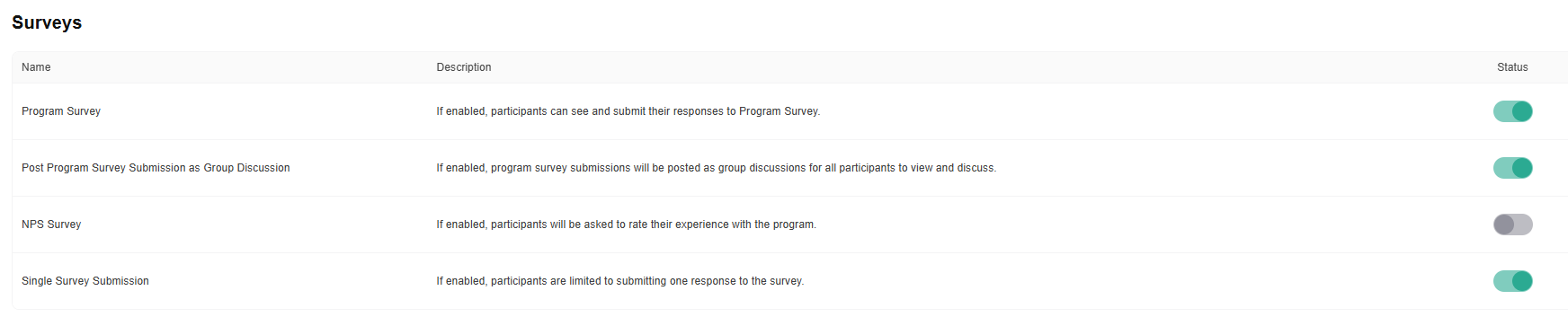
These settings control participant surveys and how responses are collected and shared.
- Program Survey: Allows participants to access and submit responses to the Program Survey.
- Post Program Survey Submission as Group Discussion: Posts program survey submissions as group discussions for participants to view and discuss.
- NPS Survey: Asks participants to rate their experience with the program using a Net Promoter Score survey.
- Single Survey Submission: Limits participants to submitting one response to the survey.
Admin tip: Consider whether survey responses should remain individual feedback or be shared for group discussion before enabling the group discussion option.
12. Manager Reporting
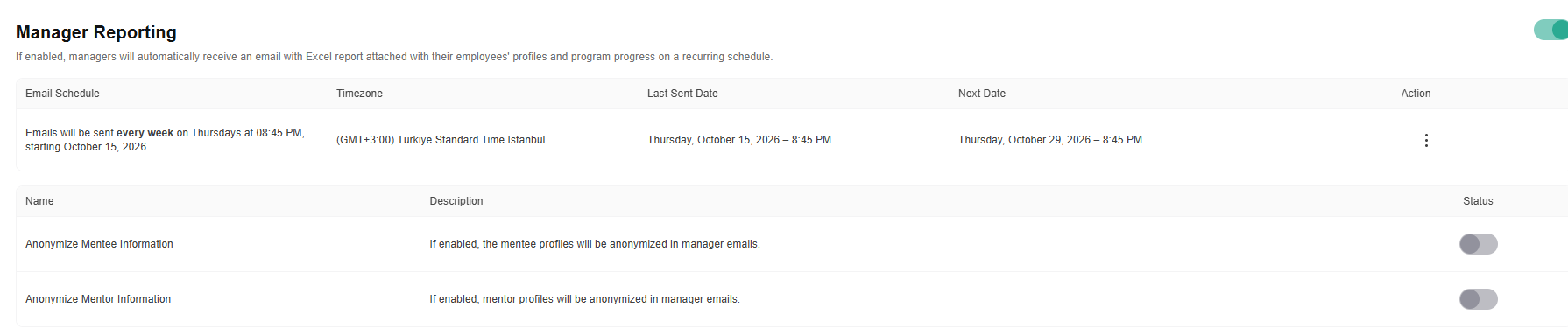
Manager Reporting automatically sends recurring email reports to managers. Reports include employee profiles and information about their program progress.
- Manager Reporting: Enables scheduled email delivery of Excel reports.
- Email Schedule: Defines when reports are sent.
- Timezone: Determines the time zone used for the reporting schedule.
- Last Sent Date: Shows when the previous report was sent.
- Next Date: Shows the next scheduled report delivery.
Anonymization Options:
- Anonymize Mentee Information: Anonymizes mentee profiles in manager emails.
- Anonymize Mentor Information: Anonymizes mentor profiles in manager emails.
These options help admins manage the visibility of participant information in manager reports.
Admin tip: Review the reporting schedule, recipient arrangements, and anonymization settings to ensure reports align with your organization's reporting and privacy requirements.
13. Integrations
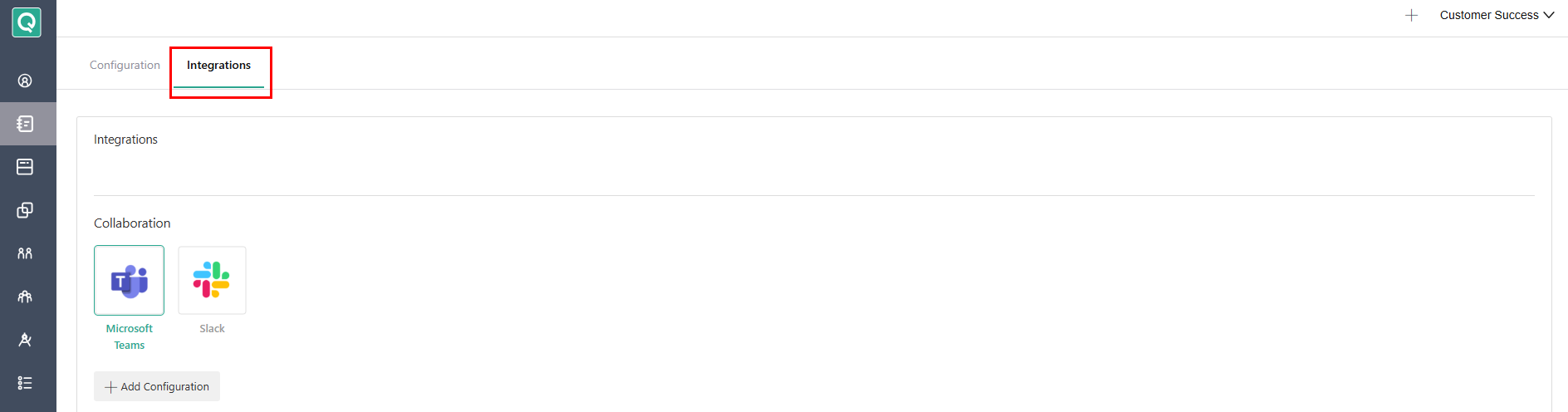
The Integrations tab contains the setup for connected tools and external services.
Use this tab to access the integration configuration separately from your program's core settings.
✨ Final Recommendation
Before launching a program, review each configuration section and confirm that the settings align with your program's structure, matching approach, participant permissions, learning activities, and reporting requirements. Test important workflows with sample participants to verify that the intended experience is working correctly.