
The Qooper AI Mentorship Assistant streamlines mentoring by helping admins configure AI features and enabling participants to prepare and document meetings with ease. Here’s how both admins and participants can make the most of this tool.
Step 1: Open the Admin dashboard and navigate to AI assistant settings.
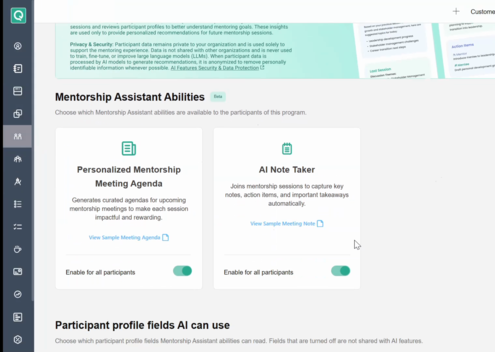
Step 2: Configure which participant profile fields the assistant can access to personalize meeting agendas and support the mentoring experience.
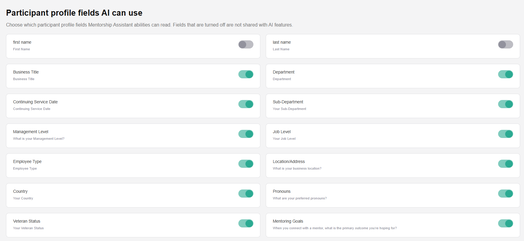
Step 3: Select the relevant profile fields and save your settings. Once you’ve configured these options, participants gain access to the AI features for their mentorship program.
Here’s what participants will see when using the AI assistant for meeting preparation:
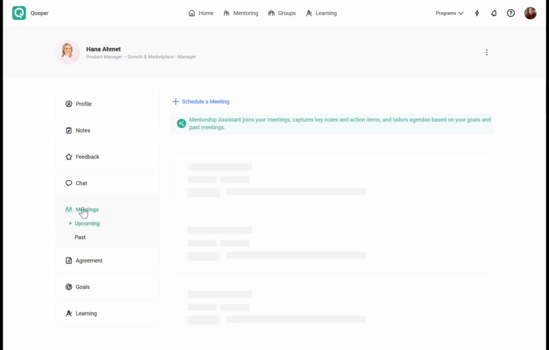
Step 1: When scheduling a meeting, look for the option to use the AI assistant to prepare your meeting agenda.
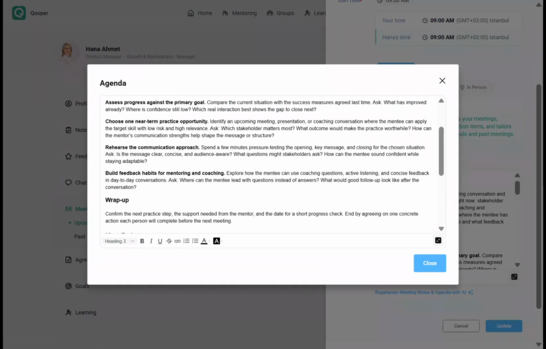
Step 2: Fill out your meeting details and select Generate Meeting Notes and Agenda with AI.
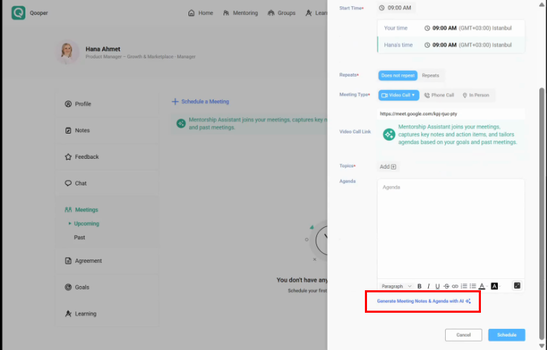
Step 3: Review the suggested agenda and topics. Edit as needed to fit your upcoming discussion.
Step 4: During your meeting, the AI assistant can provide live note-taking support. Just click Join Video Call and admit the assistant if prompted.
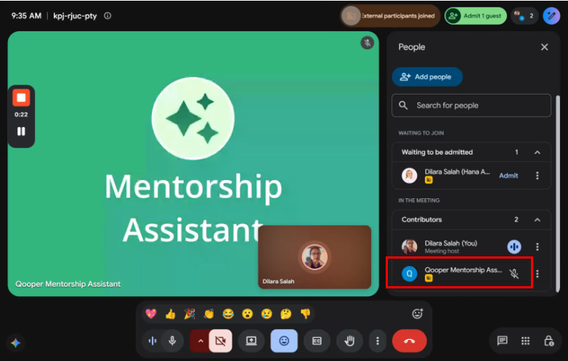
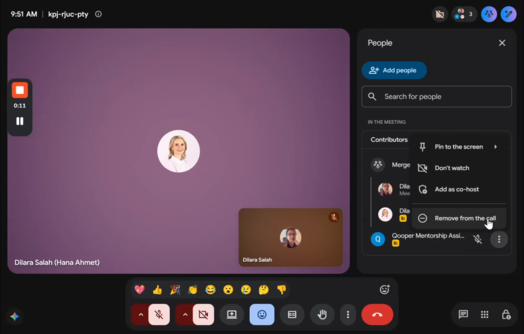
Step 5: Admit the assistant to your meeting to enable AI-powered note taking. If you’d rather not use this feature, simply decline the entry or disable it in your settings.
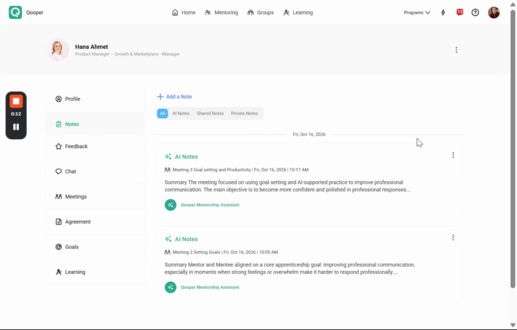
Step 6: After your meeting, your AI-generated notes will be ready for review. Go to the Notes section of your mentoring connection to find them.
With the Qooper AI Mentorship Assistant, admins can configure AI settings while participants can prepare meeting agendas and review AI-generated notes in one place. Use these tools to make your mentoring meetings more focused, organized, and productive.
📝Note:
If you don’t want the assistant to join a specific meeting, you can decline its entry. To disable it for all sessions, admins must turn off the feature in the admin dashboard.
🎥 Watch the video below for a step-by-step walkthrough of the Qooper AI Mentorship Assistant