
The Profile Form Builder helps program admins create and manage profile forms in one place. You can organize sections and questions, update answer choices, and control how many answers participants can select for multi-select questions.
These updates make it easier to keep profile forms organized and collect the information needed for participant profiles and matching.
Manage Sections and Questions
From your program's Form page, you can manage profile form sections and questions from Form Overview.
Add and Organize Sections
- Open your program's Form page.
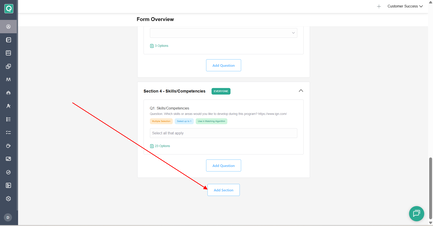
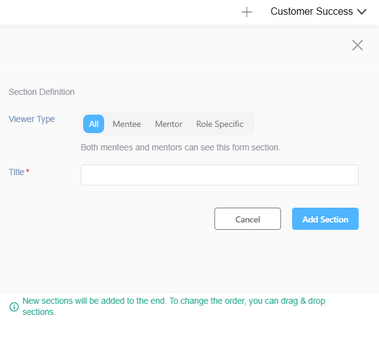
- Add a section and select who it applies to:
- All
- Mentee
- Mentor
- Role Specific
- Add questions to the section.
- Drag and drop sections and questions to arrange them in the order participants should see them.
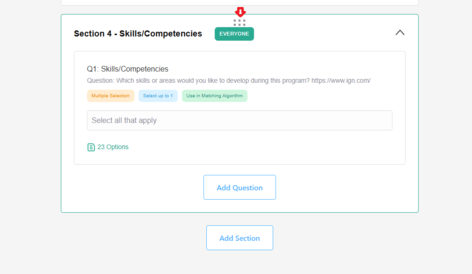
For role-specific sections, use the Mentee and Mentor views to review the questions for each role.
Edit Questions and Answer Choices
When adding or editing a question, you can manage its question text, hint, settings, and answer choices where applicable.
For single-select and multi-select questions, you can also organize answer choices by dragging them into the desired order or using Sort to arrange them by:
- Custom order
- A to Z
- Z to A
The selected sort option is not saved as a separate setting. The resulting answer-choice order is saved.
⚠️ Important Notes
- The Basic Profile section must remain first and cannot be deleted, edited as a section, or reordered.
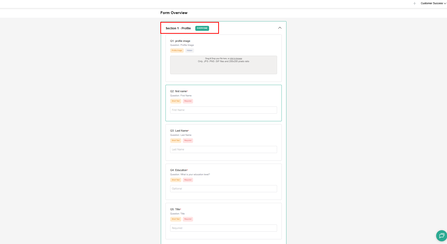
- Questions in the Basic Profile section cannot be deleted.
- Only the profile image can be hidden in the Basic Profile section. First name, last name, current position, and current organization cannot be hidden.
- The skills and interests section and its questions cannot be deleted.
- A question's type cannot be changed after it has been created.
- A section's viewer type cannot be changed while editing the section.
- If you remove an answer choice, participant answers associated with that choice may also be removed. Qooper displays a warning before you save the change.
- The Same Options setting allows mentor and mentee versions of single-select and multi-select questions to share choices. Once a question is created with this setting, it cannot be changed later.
🔢 Set Answer Limits for Multi-Select Questions
You can control how many answers participants can select for a multi-select profile question. This is useful when you want participants to identify their top skills, interests, or other priorities.
Configure Answer Limits
- Open your program's Form page.
- Open the multi-select question you want to update.
- Turn on Limit answers.
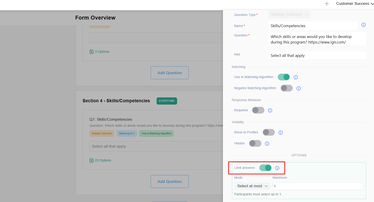
- Select the rule you want to apply:
- Select at least — Participants must select a minimum number of answers.
- Select at most — Participants can select no more than a specified number of answers.
- Select exactly — Participants must select the specified number of answers.
- Select between — Participants must select a number of answers within a specified range.
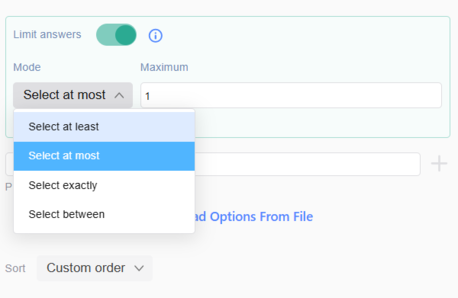
- Enter the required count or minimum and maximum values.
- Save your changes.
What Participants See
When completing or editing their profiles on web or mobile, participants see the answer limit next to the question, along with a count of their selected answers.
For example, a question may display “Select up to 3 answers.”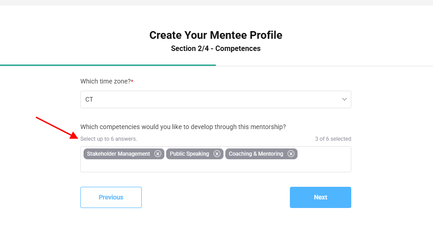
Qooper validates the selection before participants can continue. If their selection does not meet the rule, they see a validation message. Once the maximum number of answers is reached, they cannot select additional choices.
⚠️ Important Notes
- Answer limits are available only for multi-select questions.
- Changing an answer limit does not automatically remove or change answers participants have already saved.
- The updated rule is enforced the next time a participant edits or submits the question.
- If existing answers no longer meet the updated rule, participants must adjust their selection before continuing.
- Turning off Limit answers removes the rule for future edits.