
The Qooper Reporting Dashboard provides program administrators with insights into participant engagement, program activity, mentoring outcomes, and overall program health. This guide explains the main reporting sections, dashboard tools, and available analytics within the reporting page.
Accessing the Reporting Dashboard
- Log in to your admin account
- Open the Admin panel
- Navigate to the Reporting section
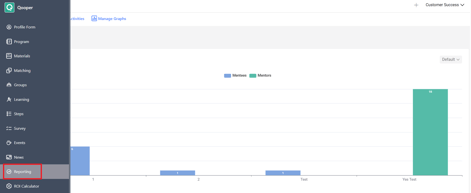
The dashboard will display reporting widgets, engagement graphs, participation data, and program analytics.
Top Dashboard Tools
Export Data
The Export Data option allows administrators to generate and download a full reporting export directly from the Reporting Dashboard.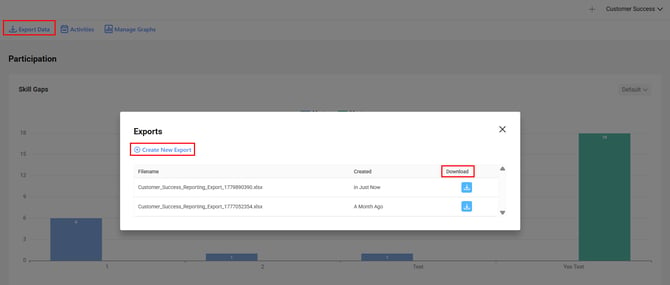
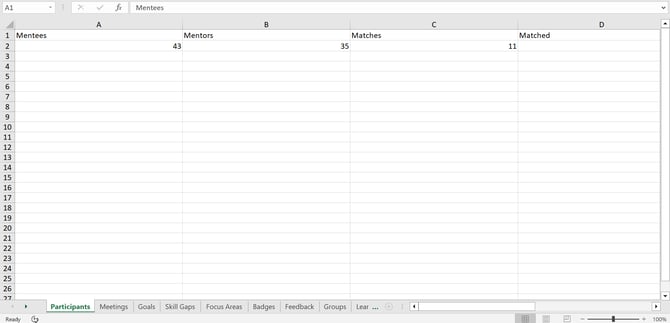
After clicking Create New Export, the system generates a downloadable file containing reporting data from across the platform, including participants, meetings, goals, skill gaps, focus areas, badges, feedback, groups, and additional program activity information.
This export can be used for external reporting, analysis, or internal recordkeeping.
Activities
The Activity Timeline is accessed from the top menu under Activities. When selected, it opens a real-time log of all program activity within the platform.
At the top of the Activity Timeline, administrators can filter activity using the available categories: All, Matches, Conversations, Meetings, Goals & Milestones, Feedback, Learning, Groups, Discussions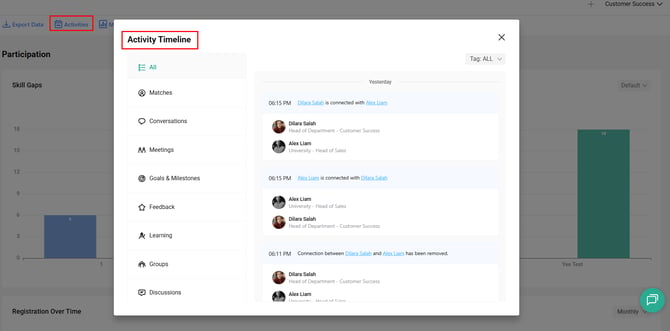
Selecting a category updates the timeline to show only activities related to that specific area.
Administrators can also choose to view all tags or filter by a specific tag.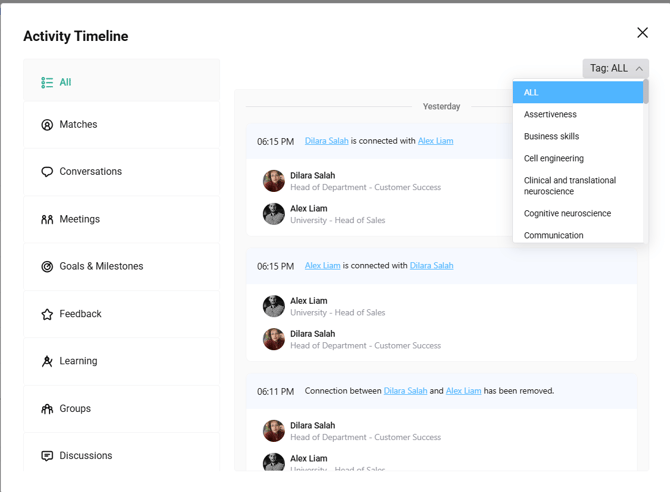
Manage Graphs
The Manage Graphs option allows administrators to control which profile form question graphs are displayed on the Reporting Dashboard.
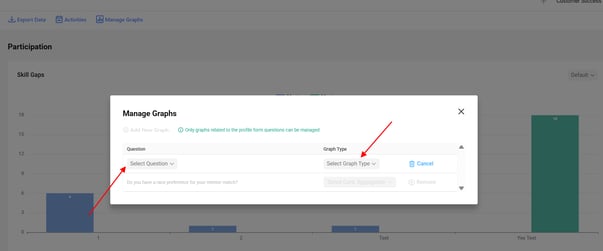
Only graphs based on profile form questions can be managed.
Within this section, administrators can view and configure:
- The profile form question being used (Question)
- The graph type assigned to that question (Graph Type)
This allows programs to visualize selected profile data in different formats based on reporting needs.
Key Metrics & Reporting Sections
1. Participation
This section shows you who is joining your program, how fast they are signing up, and their matching preferences based directly on your Profile Form settings.
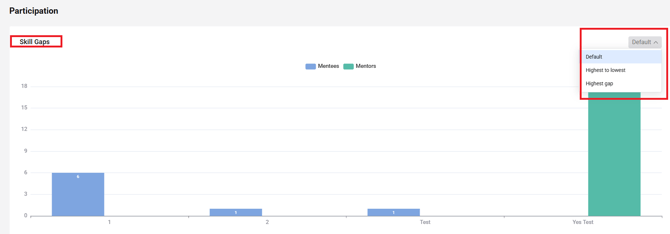
**Skill Gaps**
This chart helps you identify what your mentees need help with the most compared to what your mentors can teach.
- The Sorting Dropdown: Use the small dropdown menu on the right side of this graph to easily sort the data, such as viewing gaps from Highest to Lowest or focusing purely on your Highest Gap.
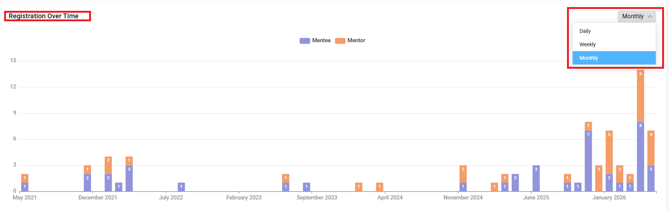
**Registration Over Time**
This bar chart tracks your signup velocity, color-coded by role (Mentees in purple and Mentors in orange).
- The Time Filter: Use the small dropdown menu on the top right of this graph to switch the view between Daily, Weekly, or Monthly data.
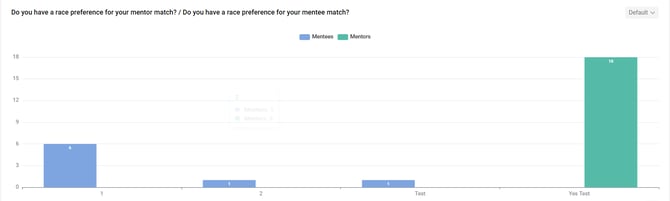
Custom Profile Question Graphs (e.g., Match Preferences): These charts show how your users answered specific criteria (like "Do you have a race preference for your mentor/mentee match?").
- Important Note: The graphs displayed here are pulled only from the core profile form questions used to match mentors and mentees. General or personal information questions will not show up as charts here.
**User Engagement**
This section measures how active your participants are. It gives you an exact headcount of your users, how they are communicating, and what milestones they are hitting.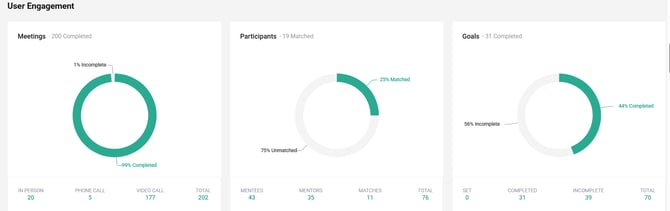
- Meetings: Displays the total number of meetings completed by your pairs. It breaks them down by the type of channel used (In-Person, Phone Call, or Video Call) so you can see how your users prefer to connect.
- Participants: A quick, real-time headcount of everyone inside your program. It shows your total number of registered Mentees, registered Mentors, active Matches, and the overall Total of participants.
- Goals: Tracks accountability and progress. It breaks down the goals set by users into three categories: Set (new goals), Completed, and Incomplete.
- Badges & Certifications: Displays how many participants (and what percentage of your program) have earned special milestones like the Mentoring Badge, Achiever Badge, Learner Badge, or official program Certifications. You can click on the Certified option to download a full list of the participants who have officially completed the requirements and earned their certifications.

**Focus Areas**
This section provides a visual overview of participant activity across different focus areas within the program.
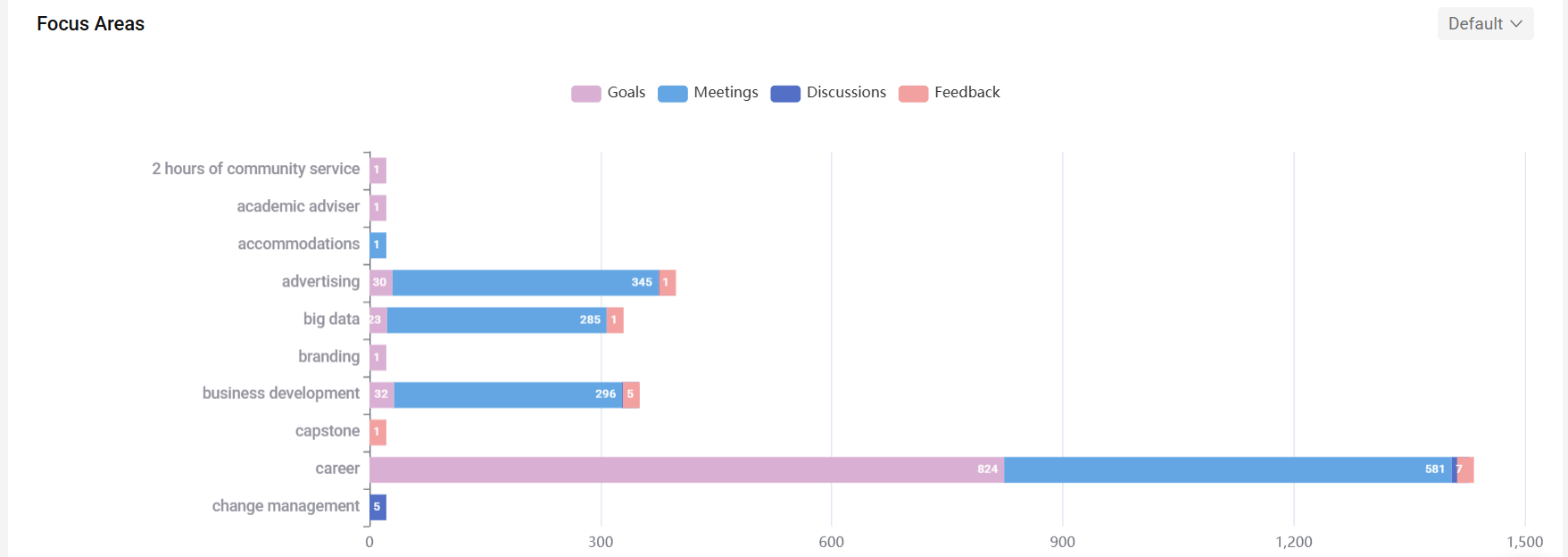
The graph displays engagement data across four activity types:
- Goals
- Meetings
- Discussions
- Feedback
Administrators can use this view to understand how participants are engaging with different focus areas throughout the program.
**Mentor & Mentee Feedback**
This sections display participant responses to the following satisfaction questions:
- How happy are the mentors with their mentoring relationships?
- How happy are the mentees with their mentoring relationships?
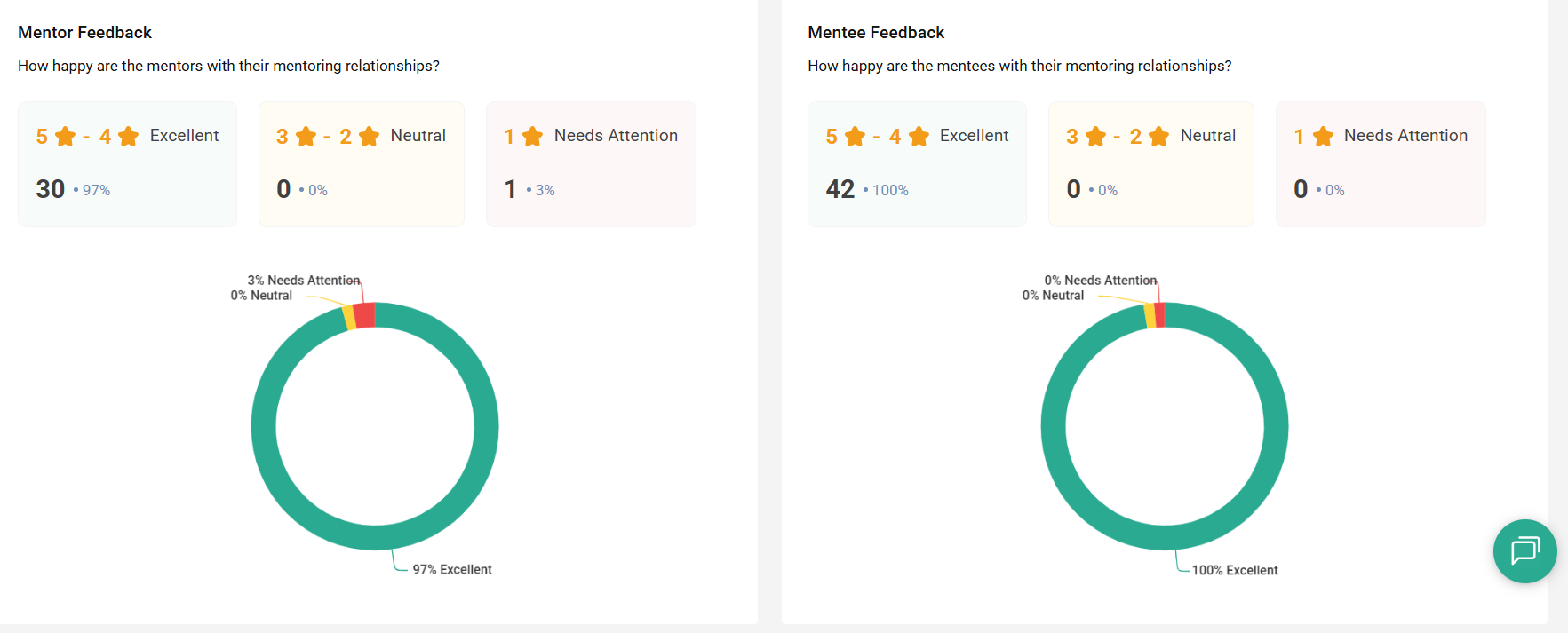
Responses are grouped into three categories:
- Excellent (ratings 4–5)
- Neutral (ratings 2–3)
- Needs Attention (rating 1)
Each section includes a visual chart showing the distribution of responses, along with the number and percentage of participants within each category.
These charts provide administrators with a quick overview of mentor and mentee relationship satisfaction within the program.
**Mentorship Hours**
section displays participant engagement hours across three activity types:
- Meetings
- Events
- Learning
This section uses a graph to show the total hours recorded for each activity type throughout the program over time.
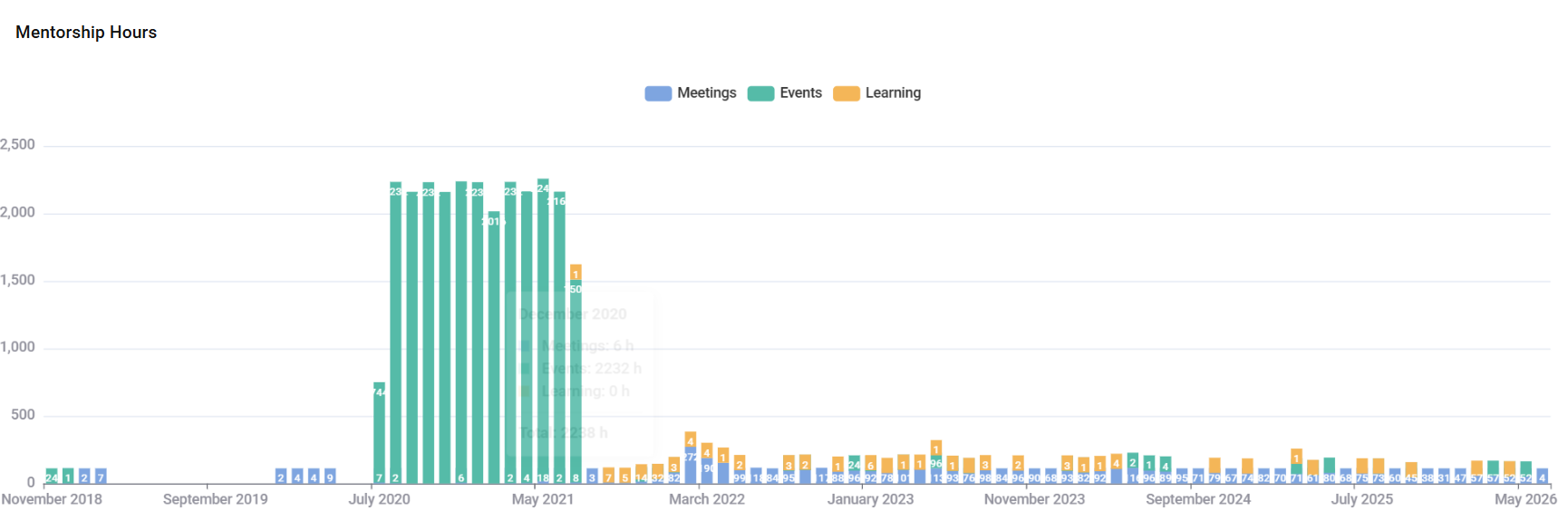
The graph is organized by month, allowing administrators to view participation trends across different periods.
By hovering over a data point on the graph, administrators can view the total number of hours participants spent during a specific month in:
- Meetings
- Events
- Learning
This provides a visual overview of how participants are engaging with various program activities and how engagement changes over time.
**Groups**
This section provides an overview of activity and engagement within the groups created in your program.
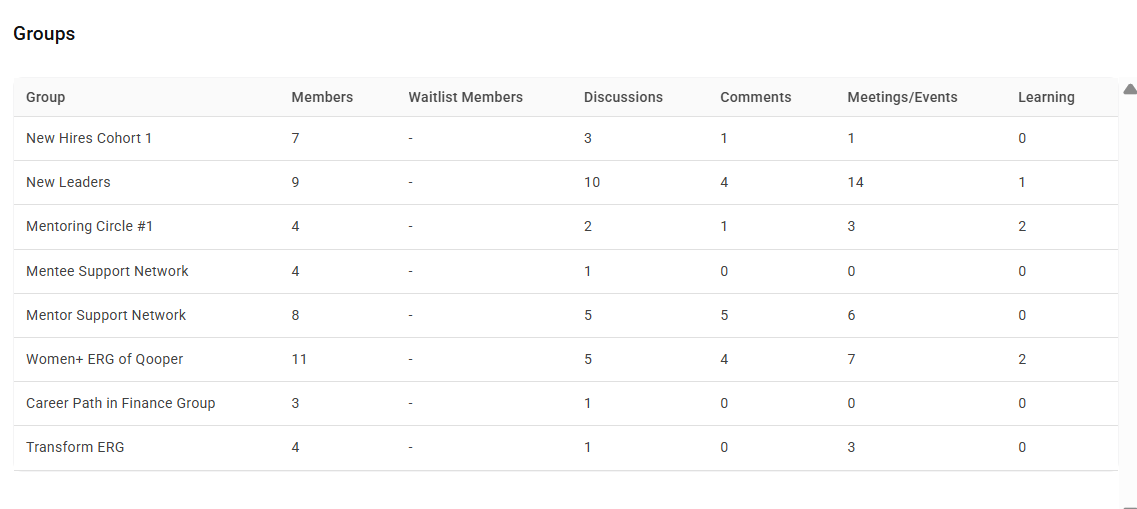
Each group is listed individually and displays the following metrics:
- Members – Total number of participants in the group
- Discussions – Total number of discussions created within the group
- Comments – Total number of comments made within group discussions
- Meetings/Events – Total number of meetings or events associated with the group
- Learning – Total number of learning activities associated with the group
This section allows administrators to compare engagement levels across groups and monitor participation within different communities and networks throughout the program.
**Meetings Duration**
This section displays the total number of hours participants have spent in meetings across the program.
At the top of the section, administrators can view the total meeting hours recorded.
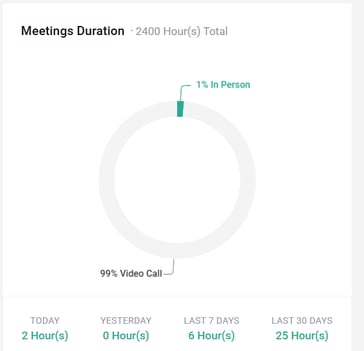
Meeting hours are also broken down by the following time periods:
- Today
- Yesterday
- Last 7 Days
- Last 30 Days
In addition, this section displays the percentage of meeting hours by meeting type:
- In-Person
- Phone Call
- Video Call
This allows administrators to track overall meeting activity and understand how participants are connecting throughout the program.
**Learnings**
This section provides an overview of learning content available within the program and participant engagement with those learning resources.
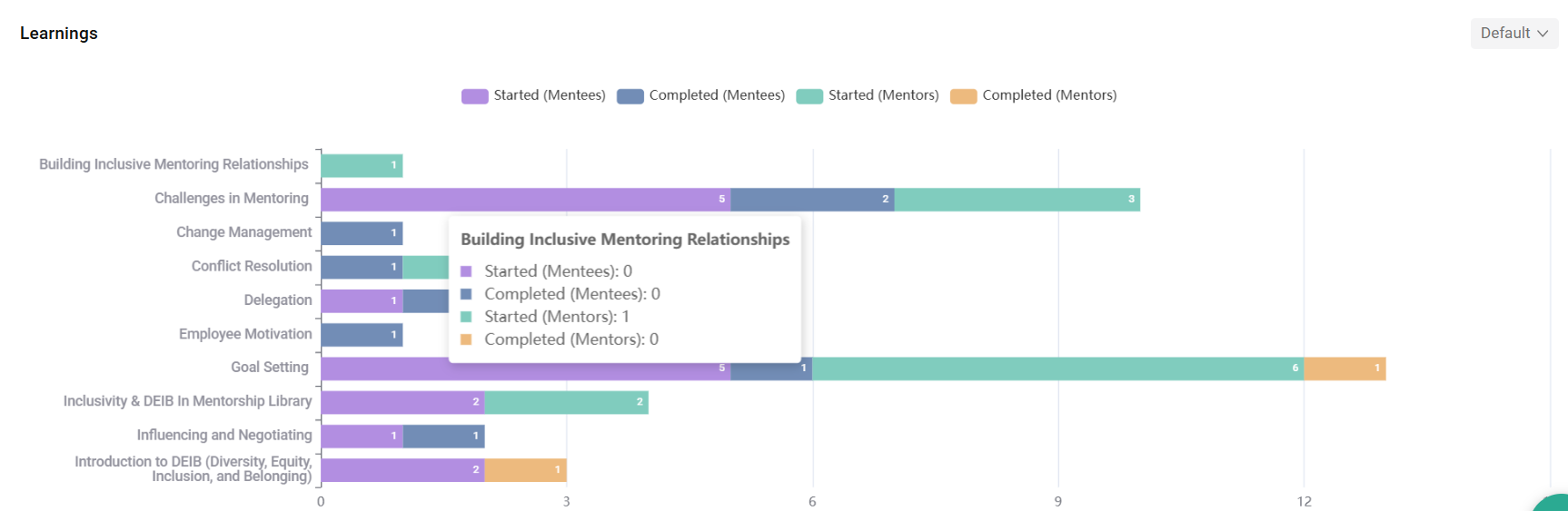
Each learning item is listed individually and includes the following metrics:
- Started Mentees – Number of mentees who have started the learning content
- Completed Mentees – Number of mentees who have completed the learning content
- Started Mentors – Number of mentors who have started the learning content
- Completed Mentors – Number of mentors who have completed the learning content
This section allows administrators to monitor learning participation and completion rates for both mentors and mentees across the program.
**Mentorship Capacity**
This section provides an overview of your program's current matching capacity based on the number of available mentors and their connection limits.

This section displays capacity-related metrics such as:
- The number of additional mentees that can be matched based on current mentor availability
- The number of mentors needed to achieve a 1:1 mentor-to-mentee balance
- The average number of mentees assigned per mentor
Displayed metrics are determined by your program settings and mentor connection limits.
This information can help administrators understand current program capacity and identify future mentor recruitment needs.
2.Outcomes
The Outcomes section displays responses collected from program surveys and assessments. Each outcome is presented individually and includes the survey question associated with that metric.
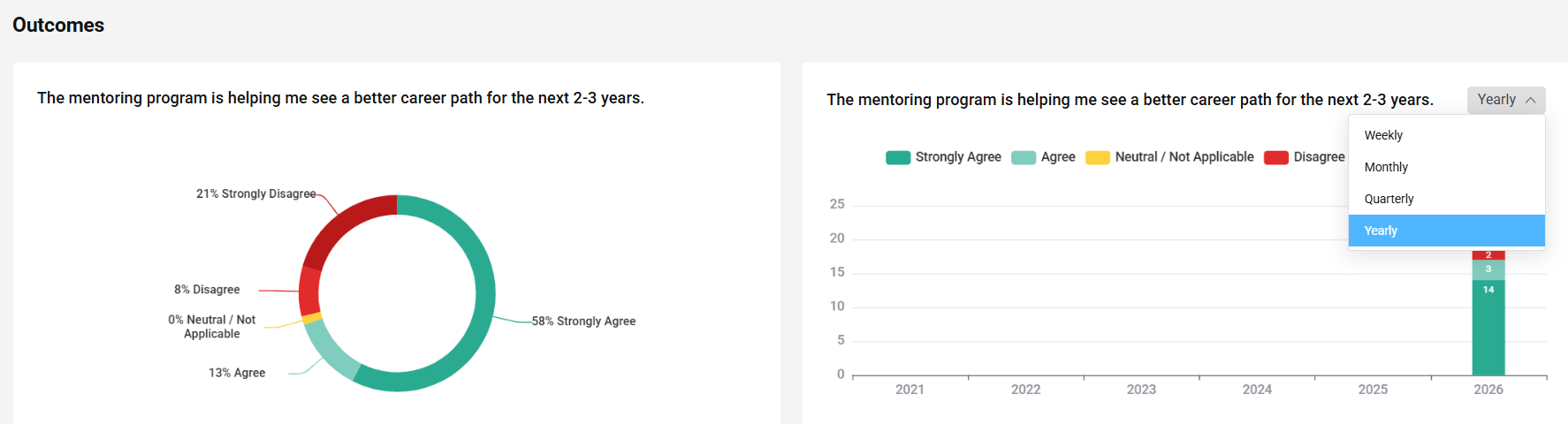
Each outcome is displayed using visual charts that show response trends and percentages over time.
For graph-based views, administrators can adjust the reporting period using the available dropdown menu:
- Weekly
- Monthly
- Quarterly
- Yearly
Selecting a different reporting period updates the graph to display data for the chosen timeframe.
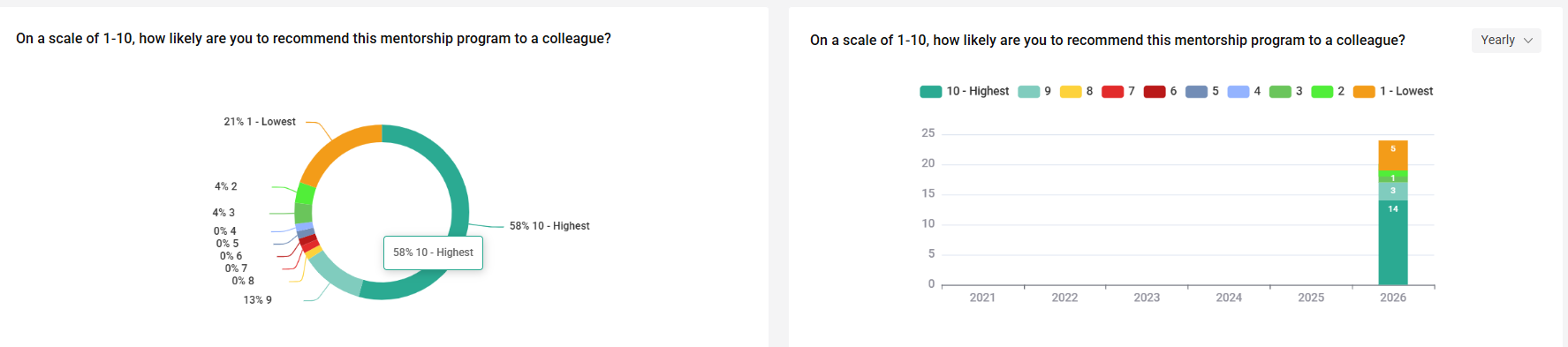
It helps administrators monitor survey responses and track trends across key program outcome metrics.
3.ROI for Leadership
The ROI for Leadership section tracks participant position updates and career progression recorded within the platform.
This section displays a chronological timeline of position changes, including:
- Participant name
- Date and time of the update
- Previous position
- Updated position
This timeline allows administrators to view career and role changes reported by participants over time.
**Career Movement Metrics**
Below the timeline, the dashboard displays career movement metrics, including:
# of Vertical & Horizontal Career Movements:
This metric shows:
- The percentage of participants who have recorded a career movement
- The total number of participants included in the calculation
Retention Rate:
This metric shows:
- The participant retention percentage
- The total number of retained participants
These metrics provide administrators with a high-level view of participant career progression and retention within the program.
4.Custom Graphs
At the bottom of the Reporting Dashboard, administrators can create and manage custom graphs based on profile form questions.
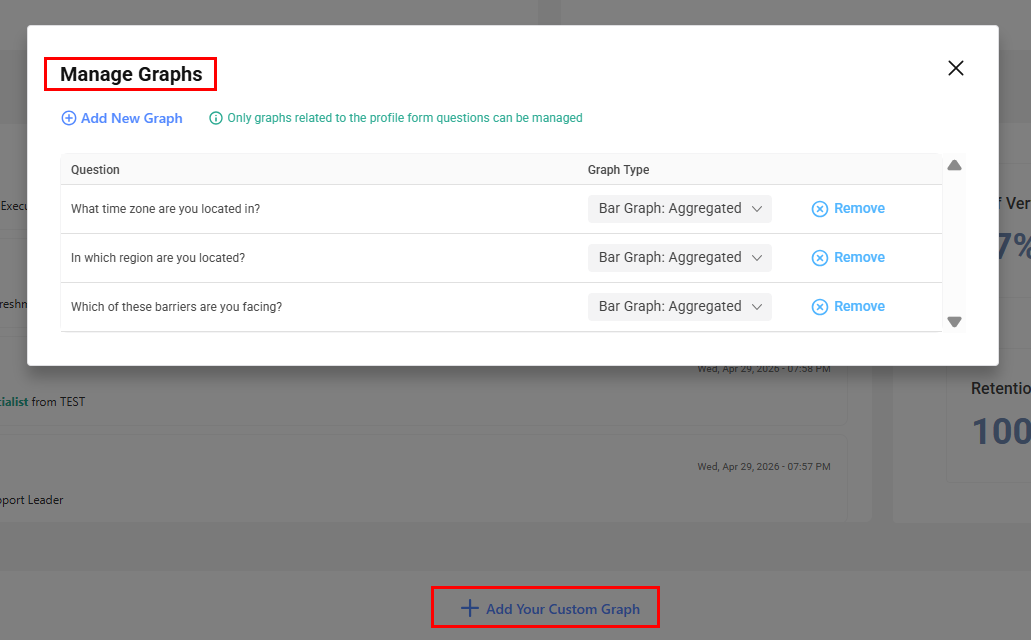
Only profile form questions can be used when creating custom graphs.
For each graph, administrators can configure:
- Question – The profile form question to display
- Graph Type – The visualization used to display the data
Available graph types include:
- Bar Graph: Aggregated
- Donut Card: Aggregated
- Bar Graph: Gaps by Role
Custom graphs allow administrators to visualize participant responses to profile form questions directly within the Reporting Dashboard.