
You may have one or more surveys assigned to you as part of your mentoring program. You can access your assigned surveys, track their status, save your progress, and complete them directly from your Qooper account.
🎥 Video Walkthrough
How to Access Your Surveys
1. Open Your Survey Dashboard
- Log in to your Qooper account.
- Click your Profile Picture in the top-right corner.
- Select Take Survey.
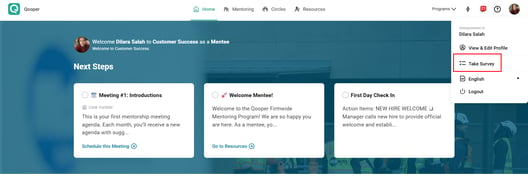
This opens your Survey Dashboard, where you can see the surveys currently available to you.
2. Check Your Survey Status
Each survey shows its current status:
- Not Started: You have not started the survey yet.
- Completed: You have already submitted the survey.
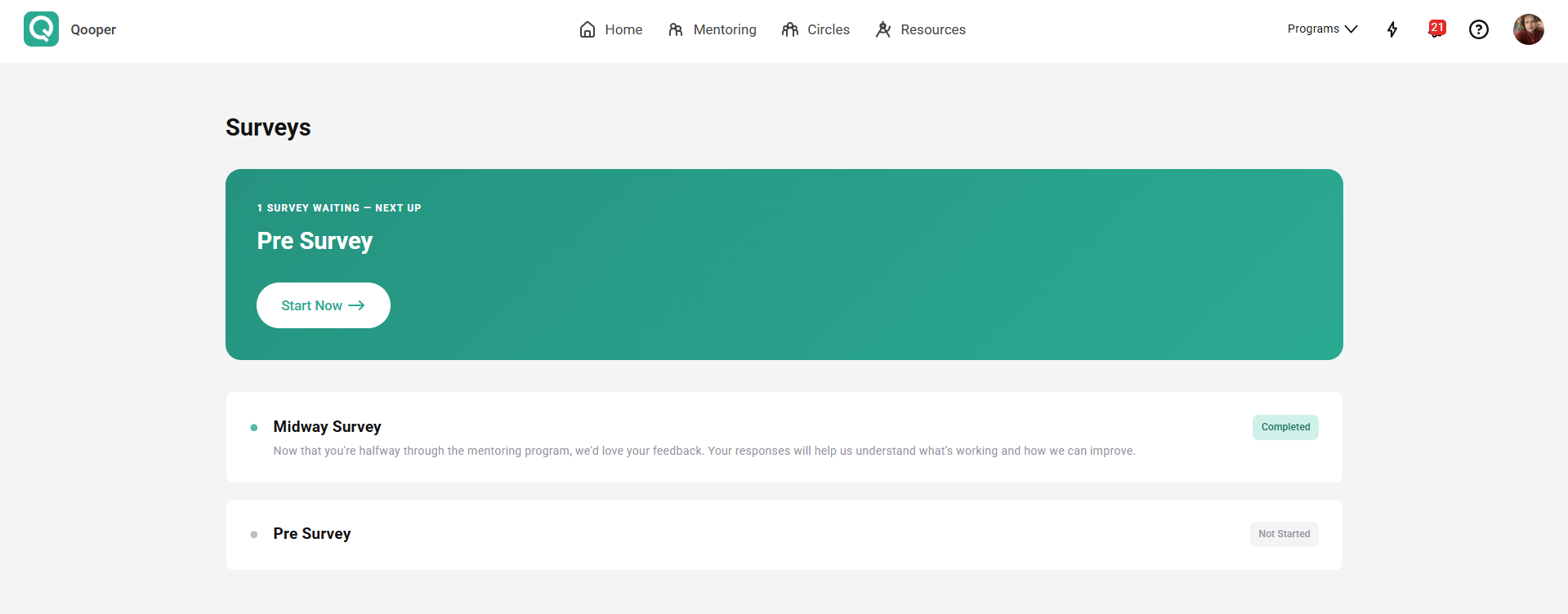
3. Start a Survey
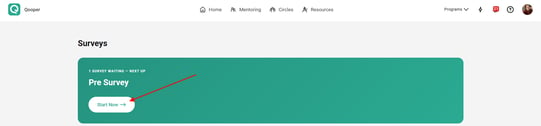
- Find a survey marked Not Started.
- Click Start Now.
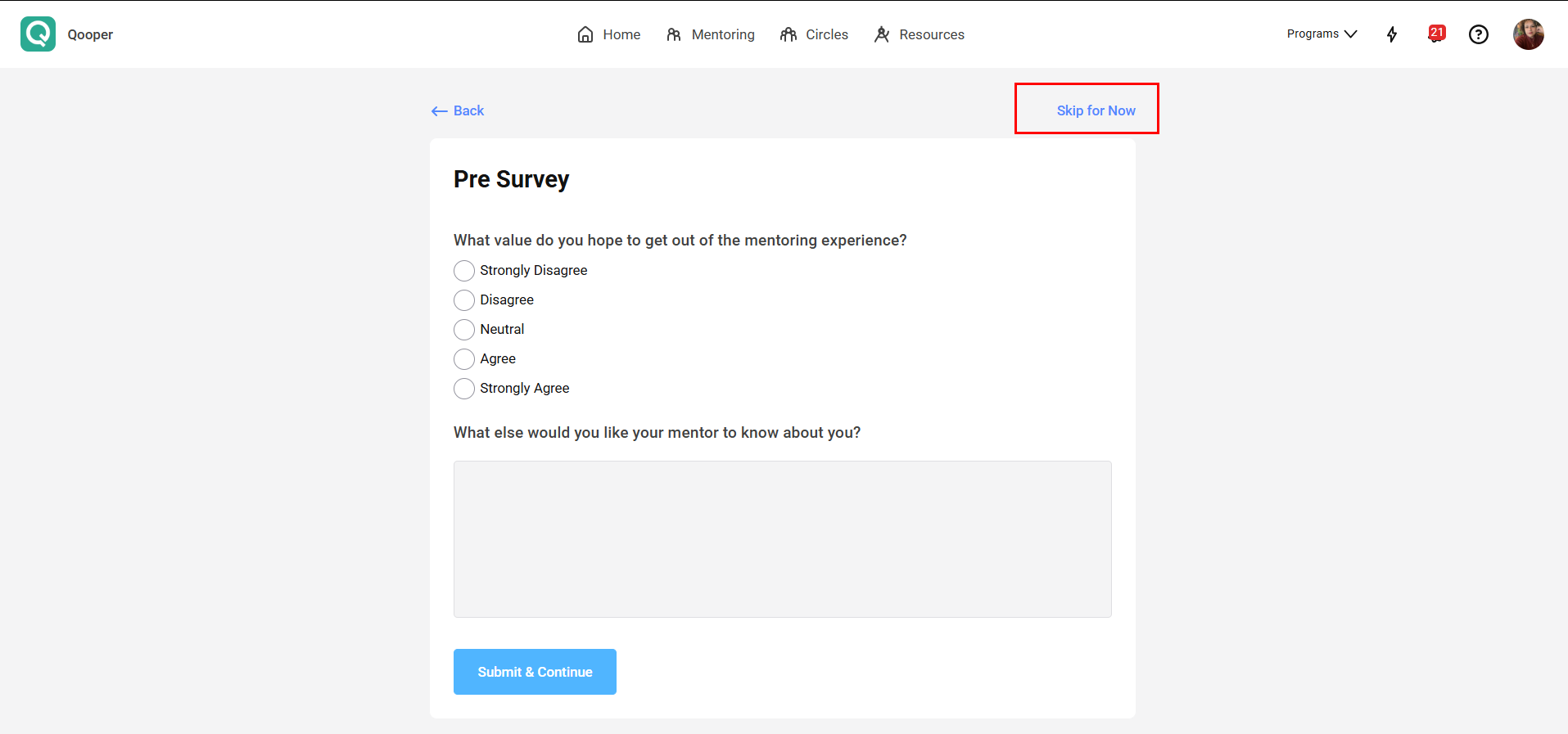
- Answer the questions at your own pace.
If you are not ready to finish the survey, select Skip for now and return to it later.
4. Submit Your Survey
When you have completed the survey, click Submit and continue.
If you have another survey to complete, Qooper will automatically take you to the next available survey.
💡 Keep in Mind
You can return to your Survey Dashboard at any time to check your assigned surveys and see which ones you have completed.
If you need help navigating your surveys, refer back to the video walkthrough above for a visual step-by-step guide.