
This article guides admins on using Bulk Suggest to generate matches in bulk for different program types: Mentor/Mentee, Peer, and Group.
Step 1: Sign in to the Admin Dashboard
Go to platform.qooper.io and log in with your admin credentials.
Step 2: Navigate to the Matching Section
From the left-hand menu, click Matching to access matching tools.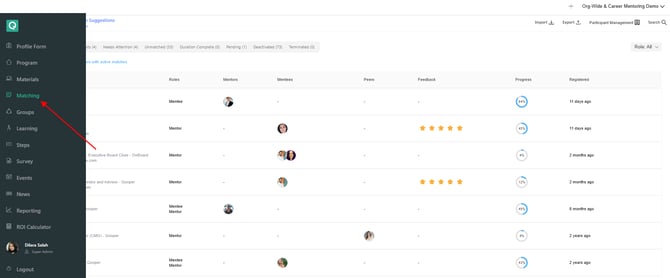
Step 3: Open Bulk Suggest
Click View Matching Algorithm Suggestions / Bulk Suggest to open the bulk matching interface.

Step 4: Select Suggest Type
🤝Mentor/Mentee (1:1) Matching
Use this option to generate standard mentor-mentee pairings.
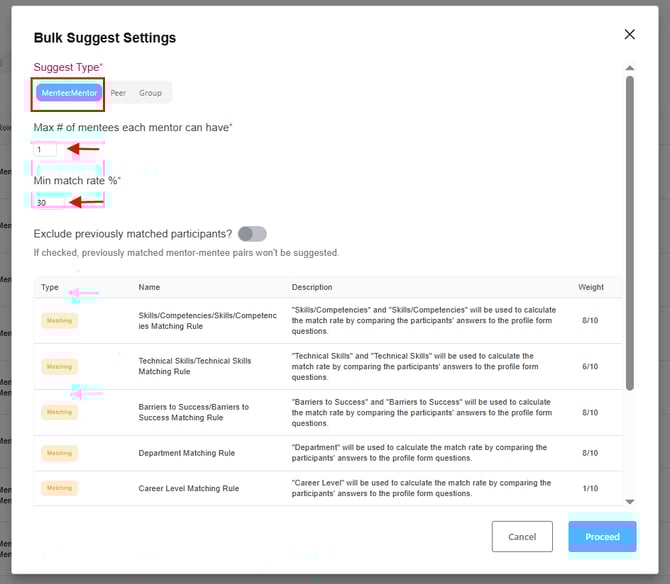
Settings:
-
Max # of mentees per mentor: Enter the desired value to limit mentees per mentor.
-
Min match rate %: Default is 30%, adjustable per program needs.
-
Matching Weight Table: All questions marked “Use in matching algorithm” appear here. Adjust weights in the Program section if needed.
Proceeding with Matches:
-
Click Proceed to generate suggestions.
-
On the confirmation page, review match percentages and compare profiles by clicking Details.
-
Confirm individually or Confirm All.
-
Matches appear under the Matched tab.
Important Notes:
Bulk Suggest only uses questions marked as “Use in matching algorithm.”
Other profile information is not considered.
Some participants may not receive suggestions if criteria aren’t met.
👥Group Matching (Optional)
If your program uses group matching:
-
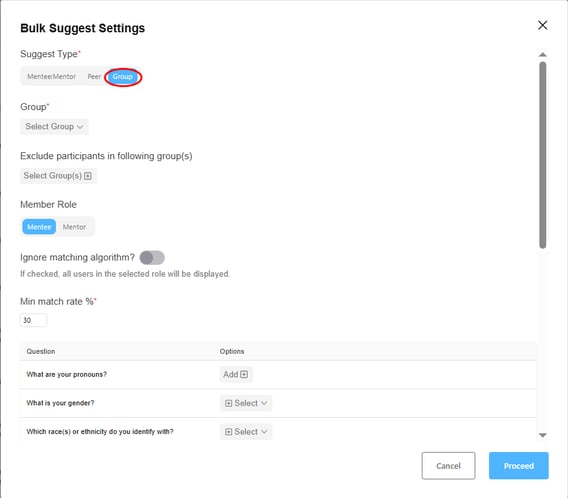
Select Group as Suggest Type.
-
Matches are created based on program goals and matching weights.
-
Proceed with confirmation the same way as Mentor/Mentee matching.
🧑🤝🧑 Peer Matching
Use this option to generate peer matches in bulk, ideal for programs with same-role participants.
-2.png?width=670&height=322&name=image%20(20)-2.png)
-3.png?width=670&height=324&name=image%20(21)-3.png)
Key Details:
-
Efficient, scalable matching that respects your matching criteria.
-
Designed for large participant pools; not all participants may get matches if filters are too restrictive.
-
Maintains high-quality, rule-based matching across participants.
How to use Peer Matching:
-
Select Peer as Suggest Type in the Bulk Suggest screen.
-
Adjust any filters or criteria as needed.
-
Click Proceed to generate suggestions.
-
Review suggestions and confirm individually or Confirm All.
-
Matches appear under the Matched tab.
Important Notes:
Bulk Suggest for Peer only uses questions marked “Use in matching algorithm.”
Other profile information is not considered.
Some participants may not receive matches if filters are too restrictive.
✅ Next Steps / Tips
-
Update all screenshots to reflect Mentee:Mentor, Peer, and Group options.
-
Highlight the Peer workflow visually to show its difference from 1:1 matches.
-
Keep internal links pointing to this single consolidated guide.