Program admins can manually activate or reactivate participants from the Pending or Deactivated tabs in the Matching section.
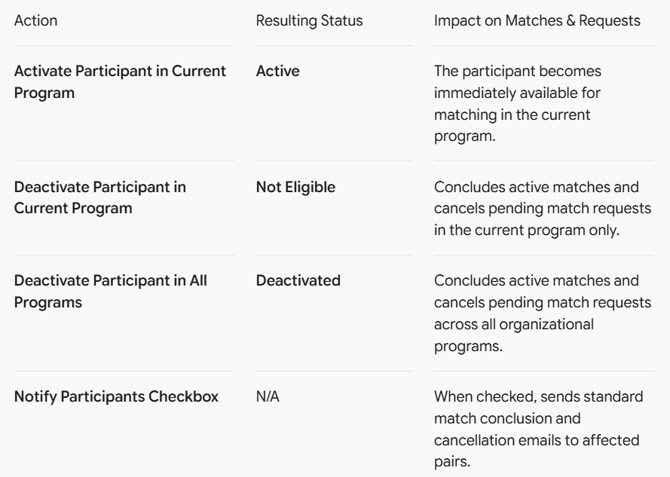
Using the Manage Participant option, admins can manage a participant's eligibility in the current program or across programs, depending on the available action. You can also control whether notification emails are sent when deactivating or reactivating participants.
🔄 Activate a Participant from the Pending Tab
If a participant appears in the Pending tab, you can manually activate them in the current program.
- Open your program's Matching section.
- Go to the Pending tab.
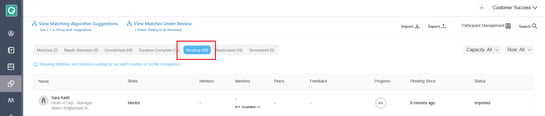
- Find the participant you want to manage.
- Click the three-dot menu on the right side of their row.
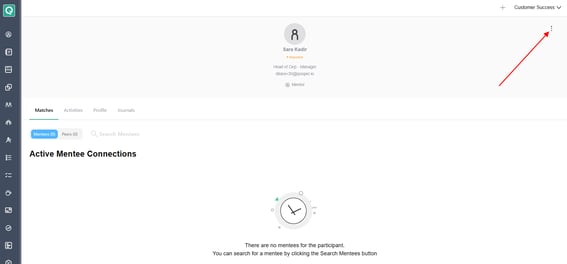
- Select Manage Participants.
- In the Manage Participant window, select Activate Participant in Current Program.
- Confirm the action.
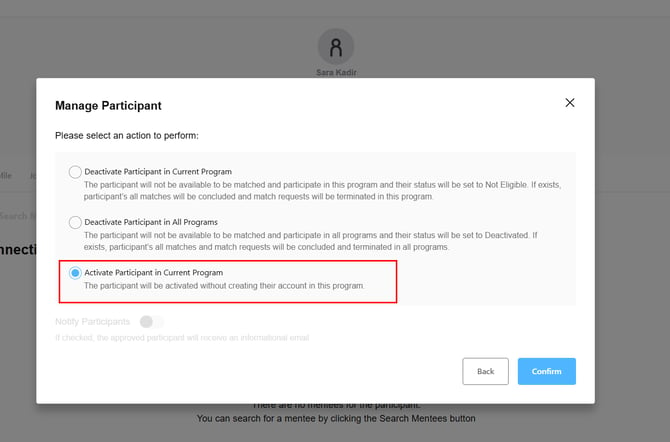
Important: Activating a participant through this option activates them in the current program without creating their account in that program. The Notify Participants option is not displayed when this activation action is selected.
♻️ Reactivate a Participant from the Deactivated Tab
If a participant appears in the Deactivated tab, you can reactivate them in the current program.
- Open your program's Matching section.
- Go to the Deactivated tab.

- Find the participant you want to reactivate.
- Click the three-dot menu on the right side of their row.
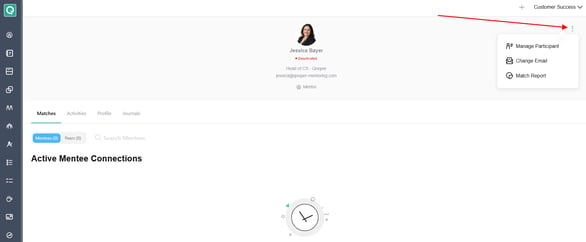
- Select Manage Participants.
- Choose the reactivation action available in the window.
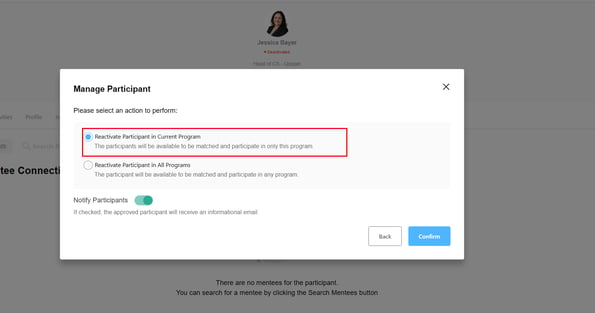
- Select whether to enable Notify Participants.
- Confirm your selection.
When the notification option is checked, the applicable notification emails are sent.
⚙️ Understanding the Manage Participant Options