
1. Log a Past Group Meeting on Qooper Web
To log a past group meeting, please follow the steps below:
- Select the "Groups" tab from the top navigation bar.
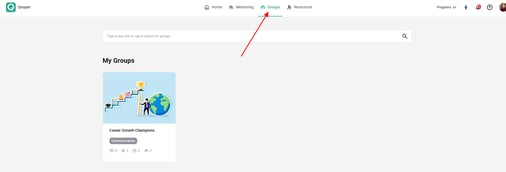
- Open the relevant group where the meeting took place.
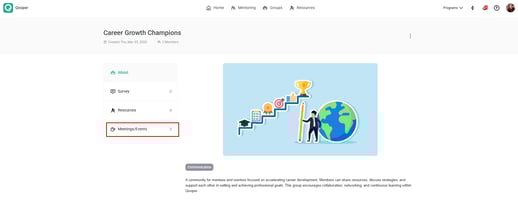
- Go to the "Meetings" section within the group.
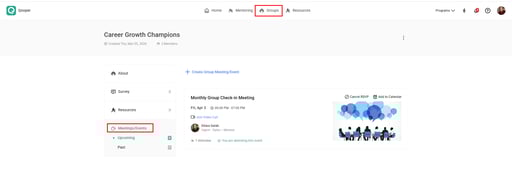
- Click on "Past" to view past meeting options.
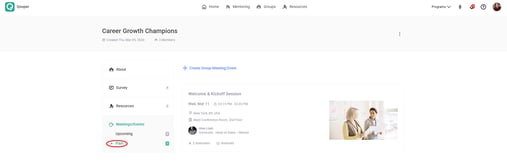
- Click on "Schedule a Meeting" to log a past meeting.
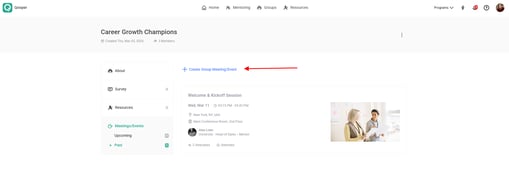
Then complete the meeting details:
- Enter the group meeting title
- Select the start and end date
- Select the start and end time
- Select the meeting type
- Add a video call link (Zoom, Google Meet, etc.) if applicable
- If the meeting was in-person, select the location from the dropdown list
- Add description (optional but recommended)
- Click "Create" to log the past group meeting.
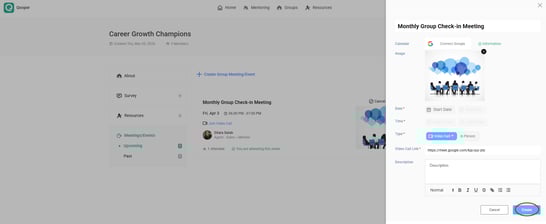
Once submitted, the meeting will appear under the "Past" tab in the group.
2. Log a Past Group Meeting on Qooper Mobile App (iOS)
On your iOS device:
- Open the Qooper app and go to the Groups tab
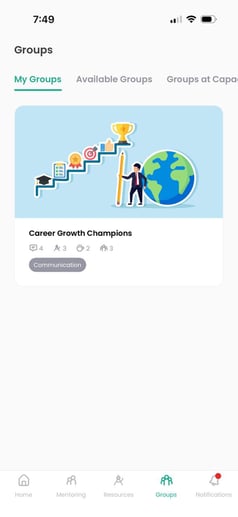
- Select the relevant group
- Tap the "Meetings" icon within the group

- Go to "Past"
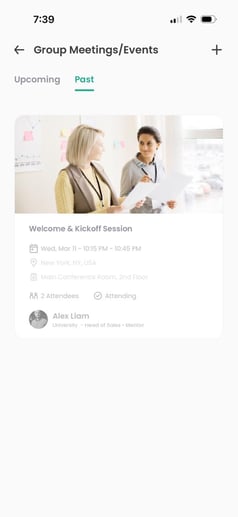
- Tap the "+" icon to add a past meeting
Then:
- Select whether the meeting was video or in-person
- Video: add meeting link
- In-person: add location
- Enter a title
- Select date and time of the meeting
- Add meeting description / notes
- Tap "Create" to complete logging.
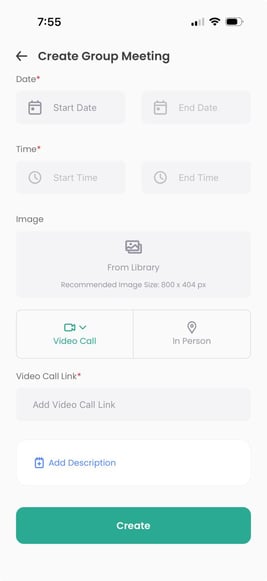
The meeting will then appear under the "Past" tab in the group.
Important Note
Group meetings must be logged from within the group space, not from individual mentoring connections. The steps are similar to 1:1 meetings but apply at the group level.