
Qooper allows program admins to manage recurring manager report emails directly from the Program Configuration page. You can choose how often reports are sent, set the delivery time, adjust the schedule, or pause emails when needed.
📹 Watch the video guide below to learn how to configure the manager reporting schedule.
Who Can Use It?
- Program admins: Configure, edit, enable, or pause the reporting schedule.
- Managers: Receive recurring Excel reports containing their employees' profiles and program progress.
How to Access Manager Reporting
- Open your program in the admin dashboard.
- Navigate to Configuration.
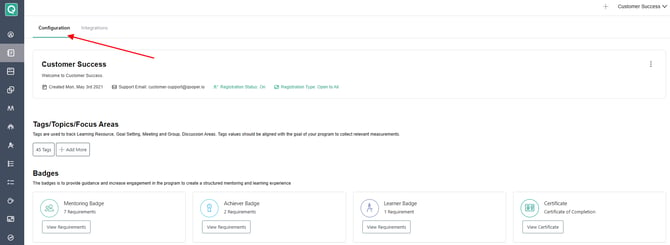
- Find the Manager Reporting section.

- Use the toggle to enable or disable manager report emails.
How to Set Up a Reporting Schedule
When enabling Manager Reporting for the first time, you must configure a schedule.
- Turn on Manager Reporting and click on the (...) 3 dots menu.

- In the schedule panel, select how frequently reports should be sent.
*Weekly*: Send reports on a selected weekday every week.
*Bi Weekly*: Send reports every two weeks on a selected weekday.
*Monthly*: Send reports on a selected day of the month or on the last day of the month.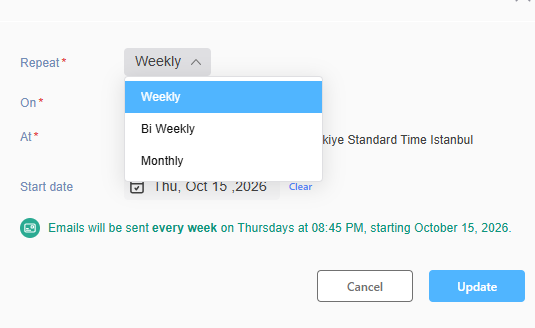
- Choose the delivery day or date and time.
- Optionally, set a Start date if the first report should be sent on a later occurrence.
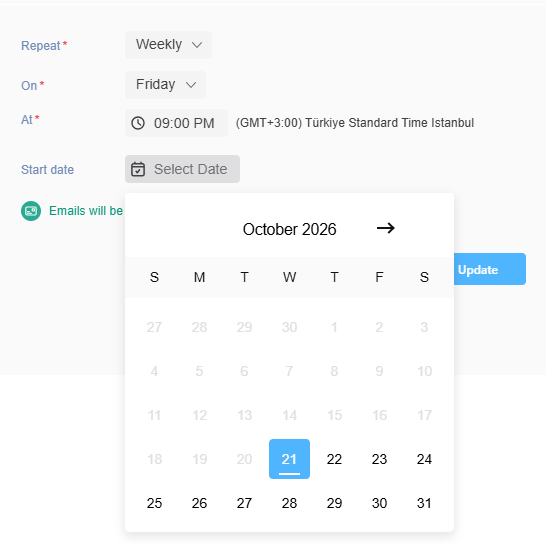
- Review the schedule summary and save your changes.
The default suggested schedule is weekly on Monday at 9:00 AM. You can adjust it to suit your program's needs and the schedule's time zone is determined by the admin who initially creates it. It remains unchanged if another admin in a different time zone edits the schedule.
⏸️Benefits
- Flexible Scheduling: Choose weekly, biweekly, or monthly delivery.
- Self-Service Management: Change schedules without submitting a support request.
- Easy Pausing: Stop recurring emails without losing the saved schedule.
- Consistent Reporting: Help managers stay informed about employee profiles and program progress.
📌Important Notes
- A Schedule Is Required: The first time you enable Manager Reporting, you must configure and save a schedule. Selecting Cancel leaves reporting disabled.
- Upcoming Sends: Changing the schedule or start date replaces the upcoming scheduled send.
- Time Zone: The time zone is set by the admin who creates the schedule and is read-only when editing.
- No Immediate Send: There is no Send Now option on this screen.
- Email Delivery Only: This configuration controls manager report emails, not separate feed, push, Slack, or Teams notifications.
- Delayed Delivery: If a scheduled send is delayed past midnight, the report is delivered late rather than skipped.
- Monthly Scheduling: Monthly reports can be scheduled for any day from the 1st to the 30th or on the Last day of the month. If the selected date is the 29th or 30th and that date does not exist in a particular month, the report will be sent on the last day of that month.
- Delayed Delivery: If a scheduled report is delayed past midnight, it will be delivered late rather than skipped.