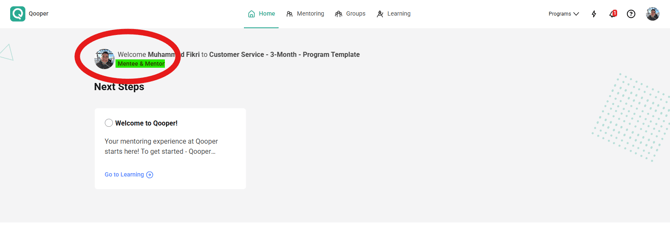
To use your account as both a mentor and mentee, please follow the steps below.
- Sign in to your account.
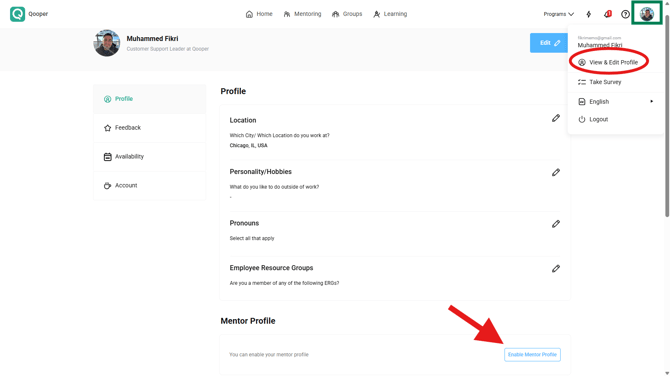
- Go to your Profile page using the profile dropdown menu in the top right corner.
-
On your Profile page, click Enable Mentor Profile or Enable Mentee Profile depending on the additional role you would like to activate.
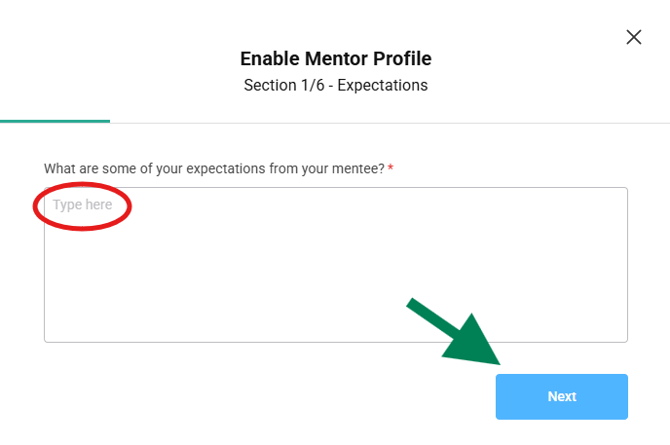
After clicking the enable button, you will be asked to complete the profile questions related to the new role you are activating. The additional profile will not become active until all required questions are completed.
For example, if you are currently a mentee and choose Enable Mentor Profile, you must complete all mentor profile questions before your mentor profile becomes active.
Once completed, you can use the same account as both a mentor and a mentee.