
Connecting your Outlook calendar allows you to sync your availability, schedule meetings, and manage events directly within Qooper.
Note: Outlook integration availability depends on your specific program settings. If enabled, you will see the Microsoft Outlook option in your integration settings.
Step 1: Locate Calendar Settings
From your dashboard, navigate to the Calendar / Integrations section via the top navigation menu as shown here:

Step 2: Select Outlook
Choose Microsoft Outlook from the available integration options and click the Connect button.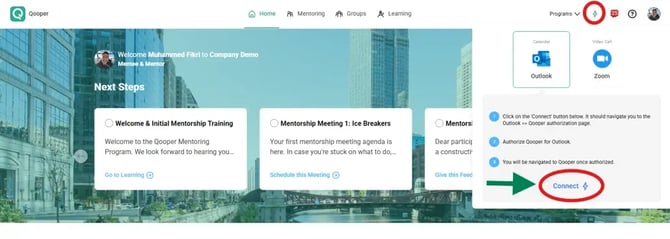
Step 3: Sign In & Grant Permissions
Enter your Outlook email and password to continue and allow Qooper to access your calendar so events can be synced properly, once authentication is complete, you will be redirected back to your account on Qooper. 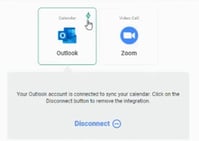
Now any meetings booked through Qooper will automatically appear on your Outlook calendar, this ensures your schedule is always up-to-date and includes the necessary meeting links and participant details without any manual entry.
Note: If you ever need to stop the sync, clicking the Disconnect button will remove the integration completely.