
This functionality allows users to filter mentor, mentee, or peer search results using profile form questions. It helps users find more relevant matches by narrowing results based on predefined profile attributes.
Admin Note (Profile Filters in Self Matching)
If you would like to enable profile filters in Self Matching, please contact your CSM team to request activation of this feature.
If enabled, users can filter search results by single choice and multiple choice profile form questions when searching for mentors, mentees, or peers.
How to Manage This Feature
Once the feature is enabled, you can control it from the Program Settings section:
- Go to the Program section in the admin panel
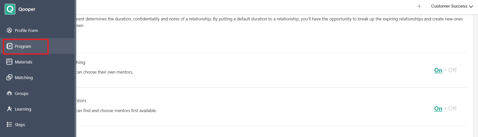
- Locate the Profile Filters in Self Matching option
- You can switch the feature ON or OFF depending on your program needs

Important Note:
- Only Single Choice and Multiple Choice profile form questions can be used as filters
- Other question types (e.g. short text) will not appear in the filter panel
- Available filters depend on how profile form questions are configured in the system
- Turning the feature OFF will remove all profile-based filtering options from Self-Matching