
Admins can update a participant's email address at any time from their profile page. This is helpful when:
- A participant signed up using the wrong email
- There was a typo during registration
- Your organization uses SSO, but the participant's account was created or imported using a personal email
Steps:
- Sign in to your admin dashboard at platform.qooper.io.
- Go to the Matching section and find the participant whose email you want to update. You can either search for them directly, or find them under one of the matching tabs (Matched, Unmatched, Pending, etc.) and open their profile from there.
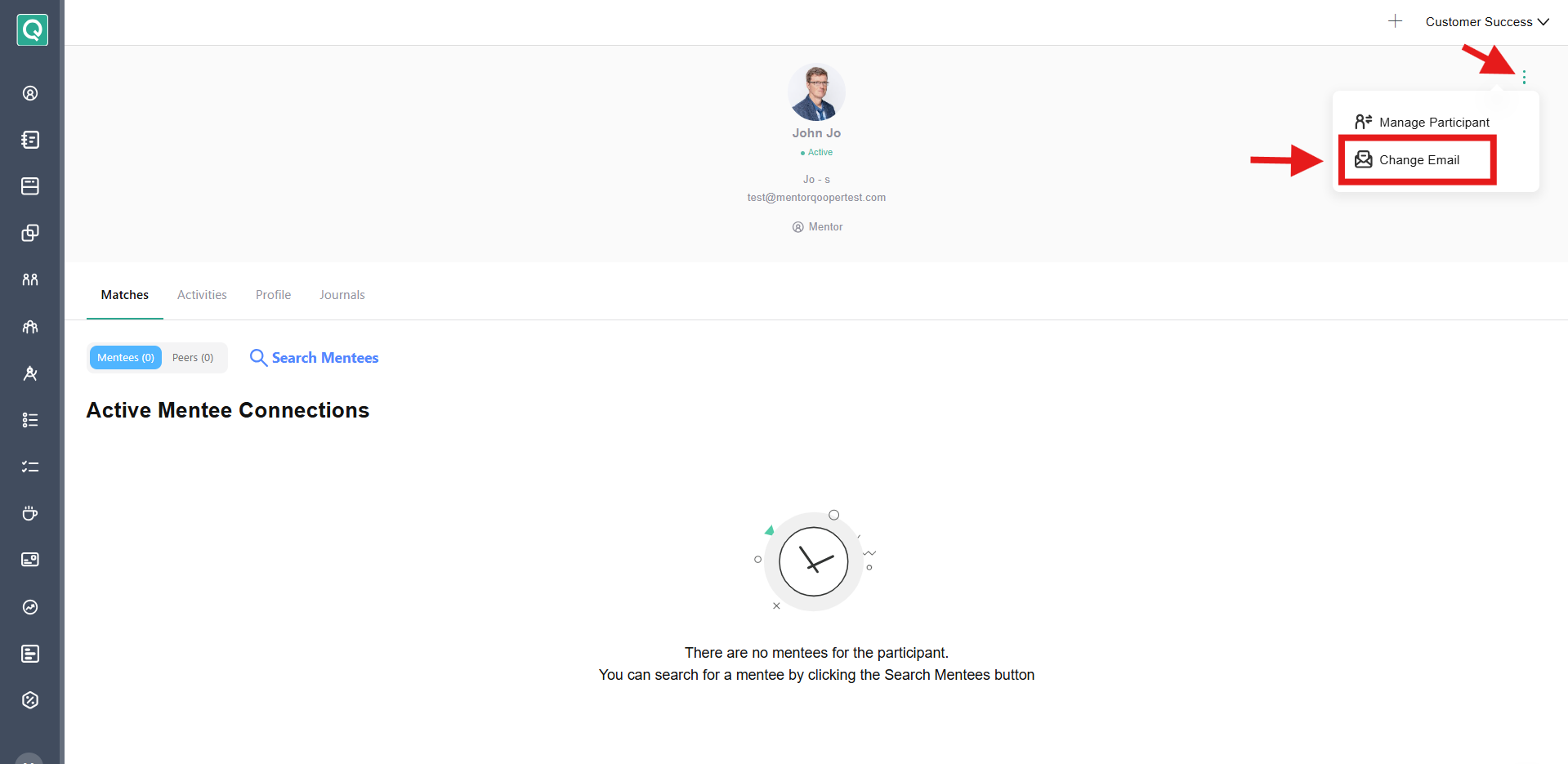
- Once you're on their profile page, click the three-dot (⋮) menu.
- Select Change Email.
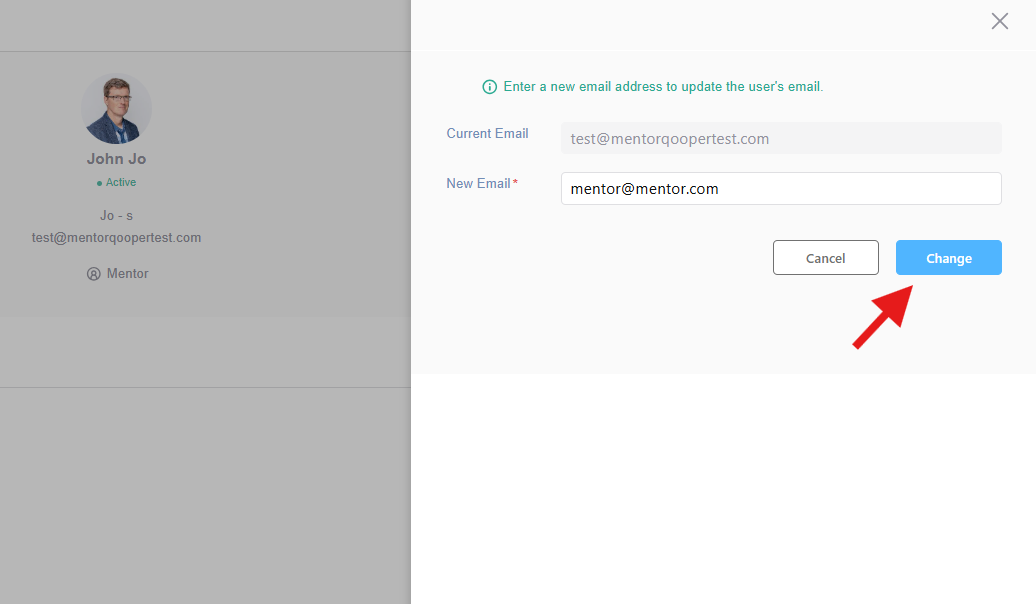
- In the New Email field, type in the updated email address.
- Click Change to save.
The participant's account will now be updated with the new email address.