
When a group's mentor or mentee member limit is full, Qooper asks admins to confirm before adding another participant. Depending on the group's waitlist setting, you can either add the participant to the waitlist or intentionally exceed the group limit using Override Limit.
This helps admins manage group capacity while making over-limit additions an intentional action.
Add a Participant to a Group:
- Open the group you want to manage.
- Select Add member.
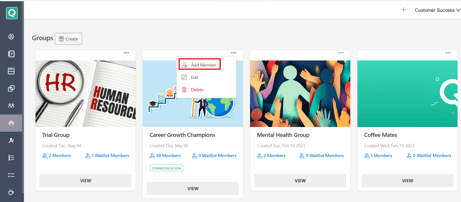
- If there is space available, the participant is added directly.
- If the member limit has been reached, Qooper displays a confirmation message.
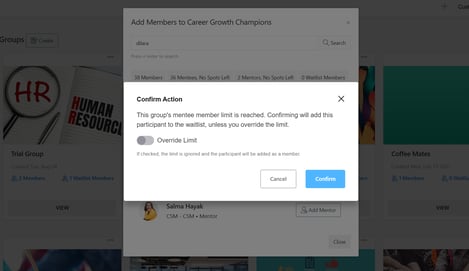
When the Waitlist Is Enabled
When the group is full, you can:
- Confirm — Add the participant to the waitlist.
- Override Limit — Add the participant directly to the group, even if the limit has been reached.
Remove a Participant from the Waitlist
Select the remove option next to the participant.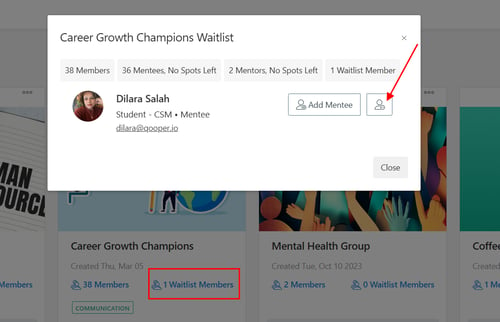
This removes them from the waitlist only. It does not add them to or remove them from the group or you can click on add member which will add the participant to the group, even if the limit has been reached.