
Survey Management & Question Creation in Qooper
This guide explains how to manage surveys in Qooper, create new questions, edit existing ones, and structure your survey for the best participant experience.
Please note: The Survey feature is available on the web version of Qooper only. Surveys can be created, managed, and accessed exclusively via the web platform and are not available on the mobile app.
1. View Your Program Survey Structure
-
Understand the full survey at a glance before making changes.
-
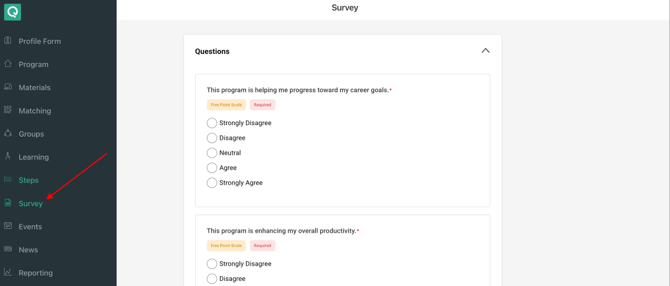
Navigate to Admin Dashboard → Survey. You’ll see all questions organized by type (rating scales, long text, choice-based), along with their labels and configurations.
2. Create Survey Questions
-
Build surveys tailored to your program needs with flexible question types.
-
Click Add Question, select the type (Five Point Scale, Four Point Scale, Ten Point Scale, Long Text, Single Choice, Multiple Selection), enter the question text, configure options, and toggle required/optional.
-
Key features:
-
Rating scales come with preset options
-
Choice questions allow custom options and reordering
-
Questions appear immediately after saving
-
3. Edit Existing Survey Questions
-
Refine questions over time without recreating the survey, preserving historical responses.
-
Click a question to open the edit drawer. You can update question text, edit option labels, add/remove options (for choice questions), and change required status.
-
Important notes:
-
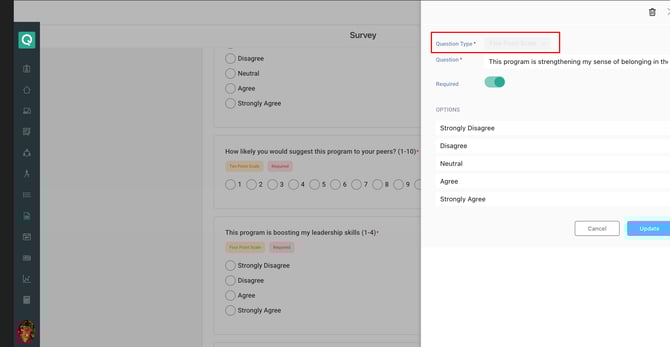
Question type is locked after creation
-
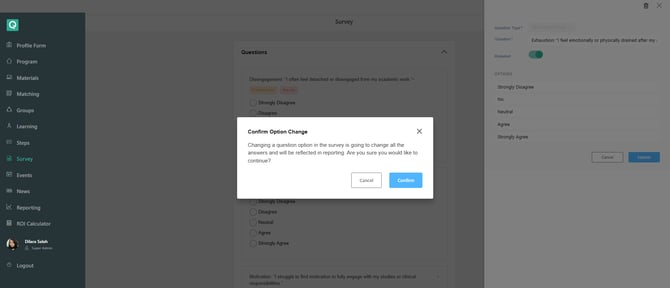
Warning prompts appear when editing scale option labels, explaining the impact on reporting
-
4. Delete Survey Questions
-
You can remove outdated or unnecessary questions safely.
-
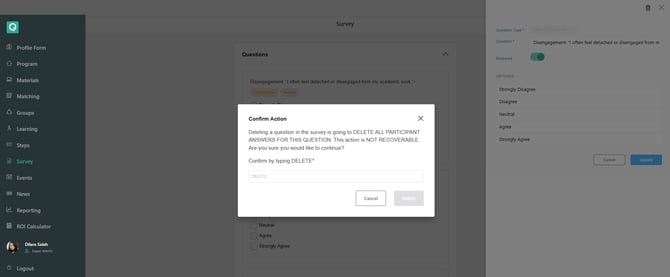
Open a question’s edit drawer, click the trash icon, and type “DELETE” in the confirmation modal.
-
You will always find a critical warning when Deleting a question permanently as it removes all participant responses and cannot be reversed.
-
Best practices:
-
Review participant response data before deletion
-
Consider editing instead of deleting to preserve historical responses
-
Export data if needed for records
-
5. Reorder Questions
-
Organize questions in a logical flow to improve participant experience and response quality.
-
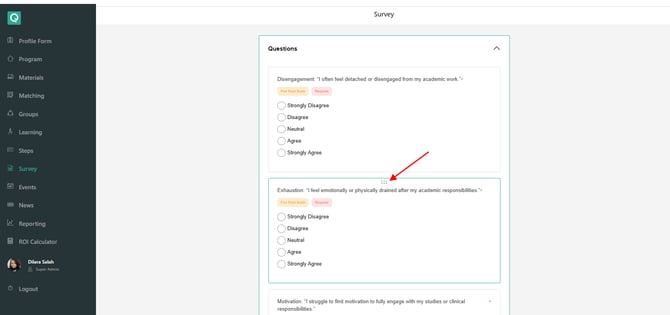
Grab the drag handle (six-dot grip icon) on a question and move it to the desired position. The new order saves automatically.
-
The sequence you set determines how participants experience the survey and can affect engagement and answer quality.
Tip for Admins: Plan your surveys thoughtfully — question order, type, and wording all affect participant experience and feedback quality.
Additional Resources: Link to Best Practice Survey Questions Document