
This guide provides step-by-step instructions to set up Microsoft Teams Collaboration Integration directly from the Qooper Admin Dashboard. Following these steps enables automated messages in Teams channels, enhancing team collaboration. Each step includes a screenshot below for visual reference.
Microsoft Teams Configuration in Qooper Platform
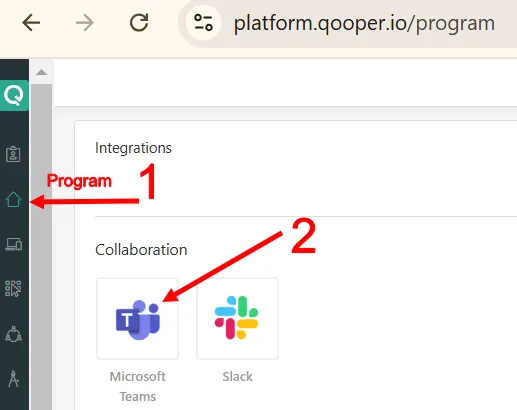
1. Access Microsoft Teams Integration
- Go to the Program section in the Qooper Admin Portal.
- Click on the Microsoft Teams app.
2. Sign in to Microsoft Teams
- Click Sign in and authenticate with your Microsoft Teams account.
💡 If you're not an admin, contact your Teams admin to grant permission.
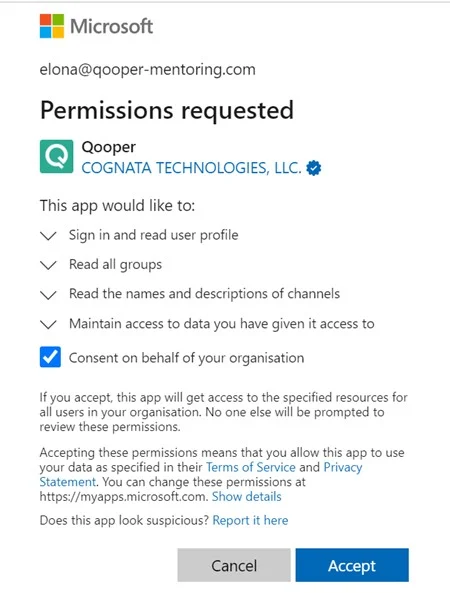
3. Grant Permissions
- Click Accept when prompted to allow Qooper to access Microsoft Teams.
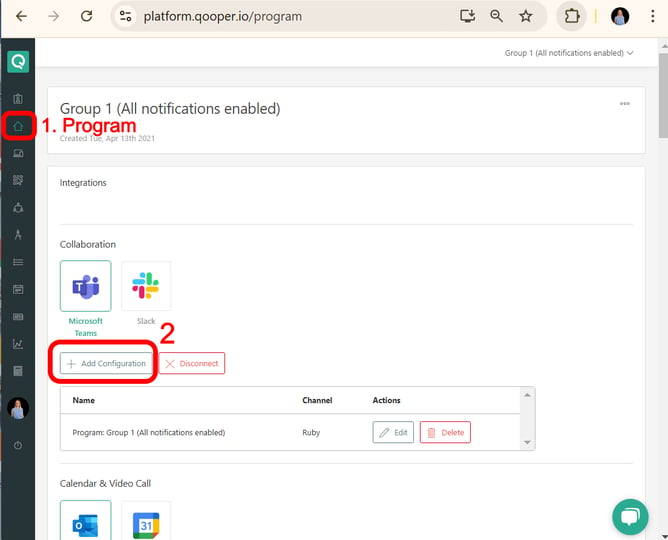
4. Add Configuration
- Click Add Integration Configuration.
5. Select Workspace
- Select the Group.
- Select the Team.
- Select the Channel.
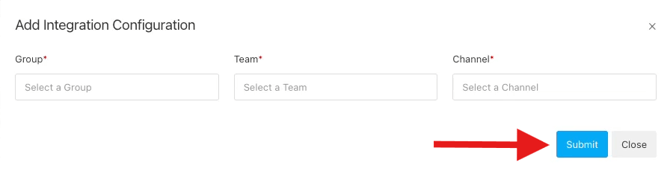
6. Submit
- Click Submit to complete the setup.
For any additional support, please contact integrations@qooper.io.